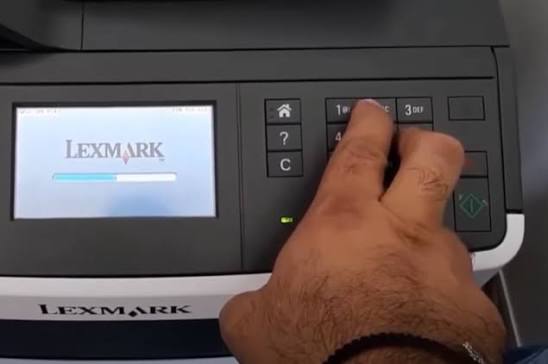
How do I reset the Lexmark printer?
Lexmark printers are widely used in homes, offices, and businesses because they offer dependable performance, high-quality printing, and useful features for everyday tasks. Like any electronic device, however, a Lexmark printer may occasionally experience problems such as printing errors, wireless connection issues, paper feed problems, or an unresponsive control panel. In many situations, resetting the printer can help restore normal operation.
What Does Resetting a Lexmark Printer Do?
Resetting the printer refreshes its internal system and clears temporary memory that may be causing operational problems.
A reset may help resolve:
- Printing interruptions
- Printer not responding
- Wireless connection problems
- Slow printer performance
- Temporary error messages
- Communication issues with the computer
When Should You Reset Your Lexmark Printer?
A reset may be helpful if your printer experiences any of the following problems:
- The printer is not responding.
- Print jobs remain in the queue.
- The control panel becomes unresponsive.
- The printer frequently disconnects from the wireless network.
- Error messages continue appearing.
- The printer is not detected by your computer.
- The printer behaves unexpectedly after a software update.
If basic troubleshooting has not solved the issue, resetting the printer is often the next step.
Prepare Before Resetting
Check the following:
- Ensure the printer is turned on.
- Remove any pending print jobs if possible.
- Check for paper jams.
- Verify that the ink or toner cartridges are installed correctly.
- Make a note of any custom printer settings that you may need later.
Preparation helps make the reset process smoother.
Turn Off the Printer
- Use the printer's power button to turn it off.
- Allow the printer to shut down completely before continuing.
- Do not disconnect the power while the printer is still turning off.
Disconnect the Power Cable
- After the printer has powered down completely, unplug the power cable from the printer.
- If possible, disconnect the cable from the electrical outlet as well.
- Removing power helps clear temporary memory stored within the printer.
Wait Before Reconnecting
- Leave the printer disconnected for a short period.
- Waiting allows the internal electrical charge to dissipate and gives the printer time to refresh its internal system.
- Avoid reconnecting the power immediately.
Reconnect the Power
- Reconnect the power cable securely to the printer and the electrical outlet.
- Make sure all connections are secure before turning the printer back on.
- Proper connections help ensure a successful startup.
Turn the Printer Back On
- Press the power button to restart the printer.
- Allow the printer to complete its startup process without interruption.
- The printer may take slightly longer than usual to initialize after the reset.
Review Printer Settings
- Once the printer starts successfully, review its settings.
- Depending on your printer model, you may need to reconnect it to your wireless network or restore certain preferences that returned to their default values.
Confirm that all settings are correct before printing.
Print a Test Page
A successful test verifies that:
- The printer starts normally.
- The printer communicates correctly with your computer.
- Print quality is satisfactory.
- The original issue has been resolved.
Testing immediately helps identify any remaining problems.
What If the Problem Continues?
Check whether:
- The printer driver is current.
- The printer firmware is updated.
- The wireless connection is stable.
- The cartridges are installed correctly.
- There are paper obstructions inside the printer.
Additional troubleshooting may be necessary if the reset does not resolve the issue.
Update the Printer Driver
Keeping the printer driver updated helps improve communication between the printer and your computer.
Updated drivers improve:
- Compatibility
- Stability
- Printing performance
- Overall reliability
Restart your computer after updating the driver.
Update Printer Firmware
Firmware updates improve the printer's internal functionality.
Keeping firmware updated enhances:
- Wireless performance
- Stability
- Compatibility
- Overall printer reliability
Restart the printer after installing any firmware updates.
Perform Routine Printer Maintenance
Routine maintenance includes:
- Cleaning the printer
- Updating printer drivers
- Installing firmware updates
- Checking paper trays
- Monitoring ink or toner levels
- Inspecting the paper path
Routine care helps extend the printer's lifespan.
Tips to Prevent Future Printer Issues
Following good maintenance habits can help keep your Lexmark printer operating smoothly.
Keep the Printer Clean
Regular cleaning helps prevent paper feed and print quality issues.
Update Printer Software Regularly
Current software improves compatibility and performance.
Use Compatible Ink or Toner
Proper supplies improve printing reliability.
Load Paper Correctly
Correct paper loading reduces paper feed problems.
Restart the Printer Occasionally
Periodic restarts refresh the printer's internal processes.
Maintain a Stable Wireless Connection
Reliable network communication improves wireless printing.
Common Mistakes to Avoid
Avoid these common mistakes when resetting your Lexmark printer:
- Disconnecting the power before the printer finishes shutting down
- Reconnecting the power immediately
- Ignoring paper jams before performing a reset
- Forgetting to review printer settings afterward
- Skipping printer driver updates
- Ignoring firmware updates
- Using incompatible ink or toner cartridges
- Interrupting the printer during startup
FAQs
What does resetting a Lexmark printer do?
Resetting refreshes the printer's internal system, clears temporary memory, and helps resolve many software-related issues without repairing hardware faults.
When should I reset my Lexmark printer?
A reset is useful when the printer becomes unresponsive, displays repeated error messages, loses its wireless connection, or fails to communicate with your computer.
Will resetting my printer erase my settings?
Some customized settings, such as wireless network information or personal preferences, may return to their default values depending on the printer model.
Why should I print a test page after resetting?
A test page confirms that the printer is working properly, communicates with your computer, and that the original issue has been resolved.
How can I prevent future Lexmark printer problems?
Keep the printer clean, update the printer driver and firmware regularly, use compatible ink or toner, load paper correctly, maintain a stable wireless connection, restart the printer occasionally, and perform routine maintenance.
Conclusion
Resetting a Lexmark printer is an effective way to resolve many temporary printing problems, including communication errors, wireless connection issues, frozen controls, and software-related glitches. While a reset does not fix every issue, it often restores normal printer operation by clearing temporary memory and refreshing internal processes.
How to Reach Our On-Call Support Team
Getting the help, you need is just a phone call away: