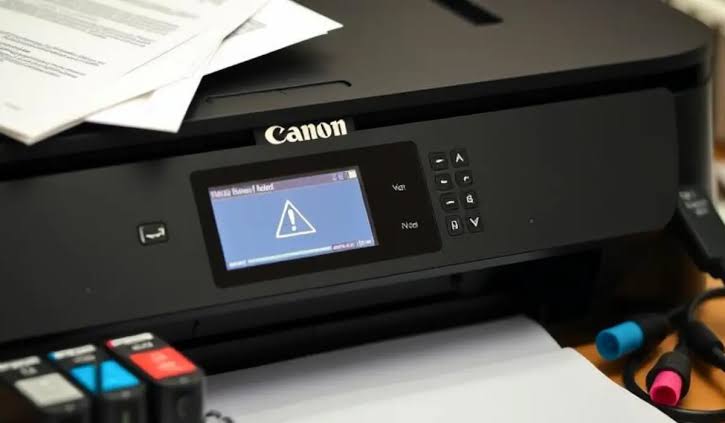
How do I troubleshoot a Canon Pixma printer?
Canon PIXMA printers are popular for their excellent print quality, reliable performance, and user-friendly features. They are commonly used in homes, schools, and offices for printing documents, photos, assignments, and business reports. Although these printers are built for dependable performance, they can occasionally develop issues such as printing failures, wireless connection problems, paper jams, poor print quality, or communication errors.
Common Canon PIXMA Printer Problems
Canon PIXMA printers can experience a variety of issues during regular use.
Some common problems include:
-
Printer not printing
-
Printer printing blank pages
-
Poor print quality
-
Wireless connection problems
-
Paper jams
-
Printer not detected by the computer
-
Slow printing
-
Print jobs remaining in the queue
-
Ink cartridge recognition problems
-
Temporary error messages
Understanding the symptoms makes troubleshooting easier.
Check the Printer Power
Before performing advanced troubleshooting, verify that the printer is powered on properly.
Check that:
-
The printer is turned on.
-
The power connection is secure.
-
The printer has completed its startup process.
-
No warning lights are displayed.
A simple power issue can sometimes prevent normal printing.
Verify the Printer Connection
Whether you use a wireless or cable connection, ensure the printer is communicating properly with your computer.
Check that:
-
The printer is connected to the correct Wi-Fi network.
-
The computer is connected to the same wireless network.
-
Cable connections are secure if using a wired connection.
-
The printer appears as available on your computer.
A stable connection is essential for successful printing.
Check the Ink Cartridges
Incorrectly installed or empty ink cartridges may prevent printing.
Inspect the cartridges carefully and ensure that:
-
They are installed correctly.
-
They are compatible with the printer.
-
They contain sufficient ink.
-
They are not damaged.
Proper cartridge installation helps maintain good print quality.
Clean the Print Head
-
Clogged print head nozzles can cause faded printing, missing colors, or blank pages.
-
Running the printer's built-in print head cleaning function helps remove dried ink and restore normal ink flow.
-
After cleaning, print a test page to check the results.
Inspect the Paper Tray
Paper feeding problems are often caused by incorrectly loaded paper.
Check that:
-
The paper is loaded properly.
-
The paper guides fit snugly against the paper.
-
The tray is not overloaded.
-
The paper is clean and undamaged.
Correct paper loading helps prevent jams.
Clear Print Jobs
-
A stuck print job may prevent new documents from printing.
-
Review the print queue and remove any print jobs that are no longer needed.
-
After clearing the queue, send a new print job to test the printer.
Restart the Printer
-
Temporary software problems may affect printer performance.
-
Turn the printer off, wait briefly, and then turn it back on.
-
Restarting refreshes the printer's internal system and often resolves minor issues.
Restart Your Computer
-
Communication problems between the printer and your computer may be temporary.
-
Restart your computer and attempt to print again.
-
A restart refreshes system processes and improves communication.
Update the Printer Driver
An outdated printer driver may cause printing or communication problems.
Keeping the driver updated improves:
-
Compatibility
-
Stability
-
Printing performance
-
Communication reliability
Restart your computer after updating the driver.
Update Printer Firmware
Printer firmware controls many internal printer functions.
Keeping firmware updated improves:
-
Performance
-
Compatibility
-
Stability
-
Wireless communication
Restart the printer after completing firmware updates.
Print a Test Page
Printing a test page confirms whether the troubleshooting steps have resolved the issue.
A successful test verifies that:
-
The printer is communicating correctly.
-
Print quality is normal.
-
The printer is ready for everyday use.
-
The original problem has been resolved.
Testing immediately helps identify any remaining issues.
Perform Routine Printer Maintenance
Routine maintenance helps reduce future printer problems.
Regular maintenance includes:
-
Cleaning the printer
-
Updating printer drivers
-
Installing firmware updates
-
Monitoring ink levels
-
Cleaning the print head
-
Inspecting the paper path
Routine care improves long-term reliability.
Tips to Keep Your Canon PIXMA Printer Working Smoothly
Following good maintenance habits helps prevent many common printer issues.
Print Regularly
Frequent printing helps prevent ink from drying inside the print head.
Keep Printer Software Updated
Current software improves compatibility and stability.
Use Compatible Ink Cartridges
Compatible cartridges improve printing reliability.
Load Paper Correctly
Proper paper loading reduces paper jams.
Maintain a Stable Wireless Connection
Reliable network communication supports wireless printing.
Restart the Printer Occasionally
Periodic restarts refresh internal printer processes.
Common Mistakes to Avoid
Avoid these common troubleshooting mistakes:
-
Ignoring low ink levels
-
Using incompatible ink cartridges
-
Overloading the paper tray
-
Ignoring printer driver updates
-
Skipping firmware updates
-
Leaving print jobs stuck in the queue
-
Ignoring print head maintenance
-
Using the wrong paper settings
Avoiding these mistakes helps improve printer performance.
FAQs
Why is my Canon PIXMA printer not printing?
The problem may be caused by low ink, clogged print heads, communication issues, outdated printer drivers, incorrect printer settings, or paper feed problems.
Why should I clean the print head?
Cleaning the print head removes dried ink from the nozzles and helps restore normal print quality.
Can restarting the printer solve printing problems?
Yes. Restarting the printer often clears temporary software or communication issues that may interrupt printing.
Why should I update the printer driver?
Updated printer drivers improve compatibility, communication, stability, and overall printing performance.
How can I prevent Canon PIXMA printer problems?
Print regularly, keep printer drivers and firmware updated, use compatible ink cartridges, load paper correctly, maintain a stable wireless connection, clean the print head periodically, monitor ink levels, and perform routine printer maintenance.
Conclusion
Most Canon PIXMA printer problems are caused by temporary software issues, incorrect settings, clogged print heads, outdated drivers, communication problems, or routine maintenance needs rather than hardware failures. By following a step-by-step troubleshooting process, you can often restore normal printing quickly.
How to Reach Our On-Call Support Team
Getting the help, you need is just a phone call away: