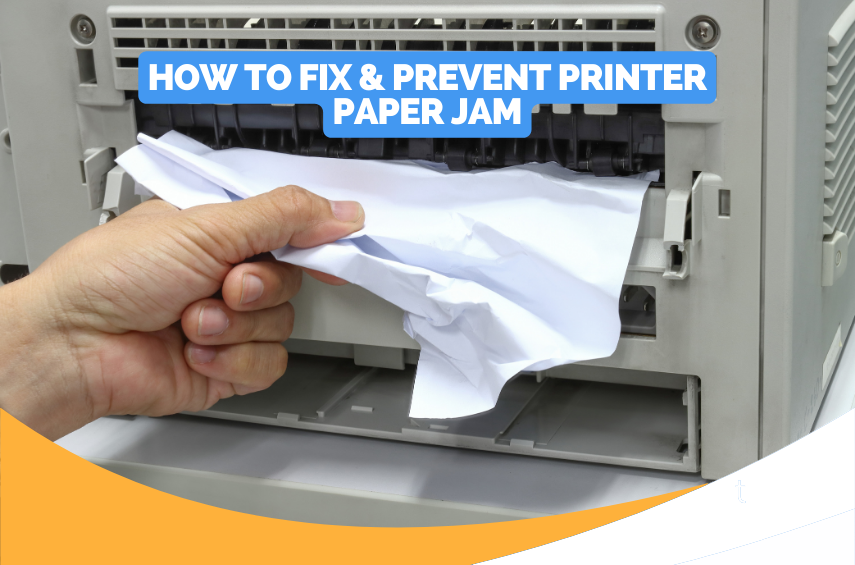
How to fix printer paper jam issues?
A printer paper jam is one of the most common printing problems experienced by both home and office users. Whether you use an inkjet or laser printer, a paper jam can interrupt your work, delay important tasks, and sometimes make it seem as though your printer has stopped working altogether. In most cases, the issue is not caused by a major hardware failure but by improper paper loading, worn paper, dust buildup, or small pieces of paper becoming stuck inside the printer.
Common Reasons Why a Printer Gets a Paper Jam
Understanding the cause of the problem helps prevent it from happening again.
Incorrect Paper Loading
Loading too much paper or placing it unevenly in the tray can lead to paper jams.
Damaged or Curled Paper
Wrinkled, folded, damp, or curled paper may not move smoothly through the printer.
Dirty Paper Feed Rollers
Dust and paper particles on the rollers can reduce their ability to grip and feed paper properly.
Foreign Objects Inside the Printer
Small objects such as paper clips, torn pieces of paper, or other debris may block the paper path.
Incorrect Paper Size
Using paper that does not match the printer settings may cause feeding problems.
Worn Paper Rollers
Over time, paper feed rollers may lose their grip and increase the likelihood of jams.
Overfilled Paper Tray
Adding too many sheets to the paper tray can prevent proper paper feeding.
Poor Quality Paper
Very thin, damaged, or low-quality paper can easily become stuck during printing.
Signs of a Printer Paper Jam
You may notice one or more of the following symptoms.
- The printer displays a paper jam message.
- Printing stops unexpectedly.
- The printer makes unusual feeding noises.
- Paper stops moving through the printer.
- Multiple sheets feed at the same time.
- The printer pulls paper unevenly.
- Printed pages come out partially before stopping.
These signs usually indicate that paper is blocked somewhere inside the printer.
How to Fix a Printer Paper Jam Issue
Turn Off the Printer
Switch off the printer before attempting to remove jammed paper. This helps prevent accidental damage to internal components.
Remove the Paper Tray
Carefully remove the paper tray and inspect it for damaged or stuck paper.
Pull Out the Jammed Paper Carefully
Remove the paper slowly using both hands. Pull it in the direction of the paper path whenever possible to reduce the risk of tearing it.
Check Inside the Printer
Inspect the paper path carefully for small pieces of torn paper or other obstructions.
Examine the Paper Feed Rollers
Check the rollers for dust, paper residue, or visible wear that may interfere with paper feeding.
Reload the Paper Correctly
Place a neat stack of compatible paper into the tray without overfilling it.
Verify the Paper Guides
Adjust the paper guides so they fit the paper securely without pressing too tightly.
Restart the Printer
Turn the printer back on after removing the jam.
Print a Test Page
Print a test page to confirm that the paper jam has been cleared successfully.
Tips to Prevent Future Paper Jams
Following these best practices can reduce the chances of recurring paper jams.
- Use clean and undamaged paper.
- Store paper in a dry location.
- Load paper evenly in the tray.
- Avoid overfilling the paper tray.
- Adjust the paper guides correctly.
- Keep the paper feed rollers clean.
- Remove completed print jobs promptly.
- Perform routine printer maintenance.
- Use the correct paper type for your printer.
- Inspect the printer periodically for small paper fragments.
- Common Mistakes to Avoid
Avoid these common mistakes when dealing with a paper jam.
- Pulling jammed paper too quickly.
- Using excessive force to remove paper.
- Ignoring small torn paper pieces inside the printer.
- Overloading the paper tray.
- Using damp or damaged paper.
- Ignoring dirty paper rollers.
- Restarting the printer before clearing the jam completely.
Avoiding these mistakes helps protect the printer and reduces future paper feed problems.
FAQs
Why does my printer keep getting paper jams?
Repeated paper jams are commonly caused by overfilled paper trays, damaged paper, dirty paper feed rollers, worn rollers, or incorrect paper loading.
Is it safe to pull jammed paper out by hand?
Yes. Remove the paper carefully using both hands and avoid using excessive force to prevent damaging the printer.
Can dirty rollers cause paper jams?
Yes. Dust and paper residue reduce the rollers' ability to grip paper correctly, leading to feeding problems.
Why does my printer pull multiple sheets of paper?
This may happen because of worn paper rollers, overloaded paper trays, or paper sheets sticking together.
How can I prevent paper jams in the future?
Use good-quality paper, load paper correctly, avoid overfilling the tray, clean the paper feed rollers regularly, inspect the printer for debris, and perform routine printer maintenance.
Conclusion
Printer paper jams are usually caused by incorrect paper loading, damaged paper, dirty rollers, foreign objects, worn paper feed components, or incorrect paper settings. Although they can be frustrating, most paper jam problems are easy to resolve by carefully removing the jammed paper, inspecting the printer for obstructions, cleaning the rollers, and loading paper properly.
How to Reach Our On-Call Support Team
Getting the help, you need is just a phone call away: