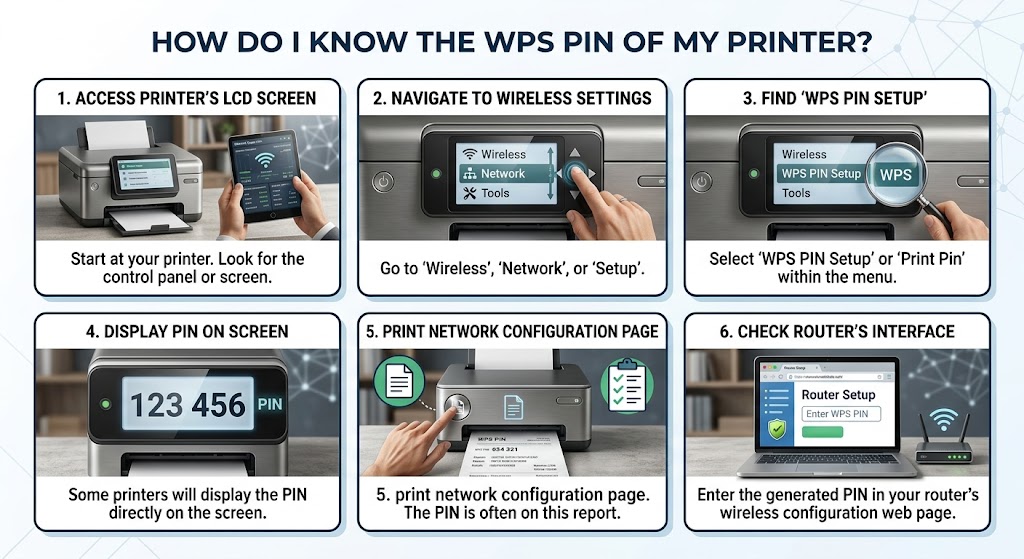
How do I know the WPS PIN of my printer?
When setting up a wireless printer, you may be asked to enter a WPS PIN. If you have never used this feature before, it is natural to wonder where the PIN is located and how to find it. Many users spend time searching the printer body, packaging, or user manual, only to discover that the PIN is not printed anywhere.
The WPS PIN is a temporary security code that helps your printer connect safely to a wireless router. In most cases, the printer generates the PIN only when you start the Wi-Fi setup process. Depending on the printer model, the PIN may appear on the printer's display, a configuration page, or your computer during installation.
What Is a WPS PIN?
WPS stands for Wi-Fi Protected Setup.
A WPS PIN is a temporary security code that allows your printer to connect securely to a wireless network.
Unlike your Wi-Fi password, the WPS PIN is usually created by the printer during the setup process and is only valid for a limited time.
Check the Printer Display
Many modern printers with a screen display the WPS PIN automatically.
Open the printer's Wireless, Network, or Wi-Fi Settings menu.
Start the WPS setup process.
The printer will generate and display a temporary PIN that you can use to complete the connection.
Look in the Network Settings
Some printer models include a dedicated WPS or Wi-Fi Protected Setup option in the network menu.
Selecting this option may generate a new WPS PIN for the current setup session.
Print a Network Configuration Page
Some printers allow you to print a network or wireless configuration page.
While the WPS PIN is usually temporary, the configuration page provides useful network information that can help during wireless setup.
Use the WPS Push Button Method
Many routers support the WPS Push Button feature.
Instead of entering a PIN, press the WPS button on the router and then start the WPS connection on the printer.
The printer and router will connect automatically if both devices support this method.
Restart the Wireless Setup
If the WPS PIN does not appear, cancel the setup and start it again.
The printer often generates a new PIN every time you begin the WPS setup process.
Restart the Printer and Router
Temporary communication issues may prevent the PIN from appearing.
Restart both the printer and your wireless router.
After the devices reconnect, repeat the WPS setup.
Update the Printer Driver
An outdated printer driver can sometimes affect wireless communication after setup.
Install the latest driver for your printer model and operating system.
Restart your computer if necessary.
Update the Printer Firmware
Firmware updates improve printer performance, enhance wireless reliability, and fix known software issues.
Keeping the firmware updated can make the wireless setup process smoother.
Print a Test Page
After connecting your printer to Wi-Fi, print a test page.
A successful print confirms that the wireless connection has been completed correctly.
Common Reasons You Cannot Find the WPS PIN
If your printer does not display a WPS PIN, one of these issues may be responsible:
WPS setup has not been started.
Temporary printer software issue.
Outdated printer firmware.
Incorrect wireless settings.
Weak Wi-Fi signal.
Router communication problem.
Printer connected to another network.
Interrupted setup process.
Network configuration conflict.
Outdated printer driver.
WPS not supported by the router.
Temporary network error.
Reviewing these possible causes can help you locate the PIN more easily.
Tips for a Successful WPS Connection
Use these simple tips for a smooth wireless setup.
Keep the printer close to the wireless router.
Update the printer driver regularly.
Install firmware updates whenever available.
Verify your Wi-Fi network before starting the setup.
Restart the printer occasionally.
Keep your operating system updated.
Print a test page after completing the setup.
Check your router settings if the connection fails.
These habits help improve wireless performance and reduce setup problems.
FAQs
Is the WPS PIN the same as my Wi-Fi password?
No. The WPS PIN is a temporary security code generated during wireless setup, while the Wi-Fi password is used to access your wireless network.
Does every printer have a WPS PIN?
Most wireless printers that support WPS can generate a temporary PIN, although the method may differ depending on the printer model.
Can I connect my printer without using a WPS PIN?
Yes. Many printers also support manual Wi-Fi setup by entering your network name and password or by using the WPS Push Button method.
Why can't I see the WPS PIN?
The PIN usually appears only after you start the WPS setup process. Restarting the setup often generates a new PIN.
Does updating the printer firmware help?
Yes. Firmware updates improve wireless performance, enhance security, and resolve many connection issues.
What should I do if I still can't find the WPS PIN?
Restart the printer and router, begin the WPS setup again, update the printer driver and firmware, and verify your router supports WPS. If the issue continues, further troubleshooting may be required.
Conclusion
The WPS PIN is a temporary security code that helps your printer connect to a wireless network safely. Unlike a permanent password, the PIN is usually generated only when you begin the WPS setup process. Depending on your printer model, you can find it on the printer display, in the network settings, or by starting the wireless setup again.
Keeping your printer software updated, maintaining a strong Wi-Fi connection, and following the correct setup process will help you complete the connection successfully. If you still cannot locate the WPS PIN, additional printer help may be needed to identify the underlying issue.
How to Reach Our On-Call Support Team
Getting the help, you need is just a phone call away: