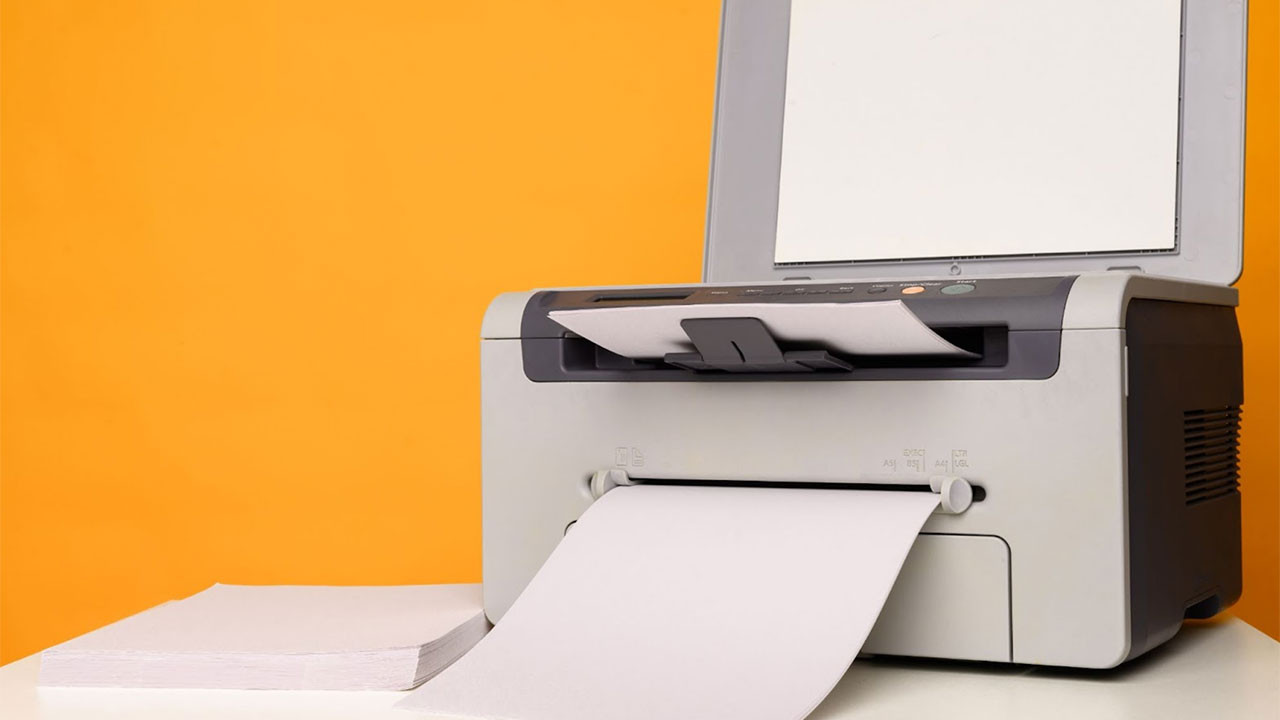
Why Is My Printer Printing Blank Pages Even Though I Have Ink?
It can be frustrating when your printer prints completely blank pages even though the ink cartridge is full. You expect your documents to appear clearly on the paper, but instead, every page comes out empty. This problem can waste paper, ink, and valuable time, especially when you need to print something important.
Many people assume that a blank page means the ink cartridge is empty. However, this is not always the case. Even with a full ink cartridge, several other issues can prevent ink from reaching the paper. Clogged printheads, incorrectly installed cartridges, protective seals left on new cartridges, outdated printer drivers, software problems, or incorrect print settings are some of the most common reasons.
Why Does My Printer Print Blank Pages?
A printer relies on several components working together to produce clear documents.
Even when the ink cartridge is full, the ink must flow correctly through the printhead before it reaches the paper.
If this process is interrupted, your printer may produce completely blank pages.
Understanding the possible causes makes troubleshooting much easier.
Check the Ink Cartridge Installation
-
One of the most common causes of blank pages is an incorrectly installed cartridge.
-
Open the printer cover and inspect the ink cartridge.
-
Make sure it is firmly installed in the correct position.
-
If the cartridge is loose, remove it carefully and reinstall it properly.
-
A secure cartridge allows ink to flow correctly.
Check for Protective Seals
-
If you recently installed a new cartridge, check whether any protective tape or seal is still attached.
-
Many new cartridges include protective covers to prevent ink leakage during shipping.
-
If these seals remain in place, the printer cannot release ink onto the paper.
-
Remove any protective materials before printing again.
Clean the Printhead
-
A clogged printhead is one of the most common reasons for blank pages.
-
Over time, dried ink can block the tiny nozzles that release ink.
-
Use the printer's built-in printhead cleaning feature.
-
After cleaning, print a test page.
-
You may need to repeat the cleaning process if the blockage is severe.
Perform a Printhead Alignment
-
A printhead that is not properly aligned can affect print quality.
-
Run the printhead alignment feature from the printer settings.
-
Once the process is complete, print another test page.
-
Proper alignment helps improve printing accuracy.
Check the Print Settings
-
Incorrect print settings can sometimes produce unexpected results.
-
Review your printing preferences before sending the document.
-
Make sure the correct printer and appropriate print options are selected.
-
Incorrect settings may prevent normal printing.
Restart the Printer
-
Temporary printer software problems may interrupt printing.
-
Turn off the printer completely.
-
Disconnect the power cable for a short time.
-
Reconnect the cable and turn the printer back on.
-
Restarting refreshes the printer system and may clear temporary errors.
Restart Your Computer
-
Your computer may also experience temporary software issues.
-
Restart the computer completely.
-
Open the document again and try printing.
-
Simple restarts often restore communication.
Check the Printer Driver
-
The printer driver allows your computer to communicate with the printer.
-
If the driver becomes outdated or damaged, printing problems may occur.
-
Review the printer driver settings.
-
Update or reinstall the driver if necessary.
-
Restart your computer after completing the installation.
Check the Document
-
Sometimes the problem is not with the printer.
-
Open another document and print it.
-
If the second document prints correctly, the original file may contain formatting or content issues.
-
Testing another document helps identify the source of the problem.
Print a Test Page
-
After completing the troubleshooting steps, print a test page.
-
If the page prints correctly, the issue has been resolved.
-
If the printer still produces blank pages, continue checking the printer settings and components.
Common Reasons a Printer Prints Blank Pages
Several different issues may cause blank printing.
Common causes include:
-
Clogged printhead.
-
Incorrect cartridge installation.
-
Protective seal left on a new cartridge.
-
Outdated printer driver.
-
Damaged printer driver.
-
Incorrect print settings.
-
Printhead alignment problems.
-
Temporary software conflicts.
-
Printer communication issues.
-
Damaged cartridge.
-
Printer maintenance needed.
-
Document formatting problems.
Reviewing these areas helps identify the problem more quickly.
Tips to Prevent Blank Page Printing
Regular maintenance helps keep your printer working properly.
-
Use the printer regularly to prevent ink from drying inside the printhead.
-
Keep the printhead clean.
-
Install cartridges carefully.
-
Remove protective seals from new cartridges before installation.
-
Keep the printer driver updated.
-
Restart the printer occasionally.
-
Use suitable paper for printing.
These simple habits help maintain good print quality.
FAQs
Why is my printer printing blank pages when the ink is full?
This usually happens because of a clogged printhead, incorrect cartridge installation, protective seals, printer driver issues, or incorrect print settings.
Can a clogged printhead cause blank pages?
Yes. If the printhead nozzles are blocked, ink cannot reach the paper, resulting in blank pages.
Should I clean the printhead?
Yes. Cleaning the printhead is one of the most effective ways to restore normal printing.
Why does my new ink cartridge print blank pages?
A protective seal may still be attached, or the cartridge may not be installed correctly.
Can a printer driver cause blank page printing?
Yes. A damaged or outdated printer driver can interrupt communication between the printer and your computer.
Conclusion
A printer that prints blank pages even with a full ink cartridge is usually experiencing a print quality or communication problem rather than an ink shortage. Clogged printheads, incorrect cartridge installation, protective seals, outdated printer drivers, and incorrect settings are among the most common causes.
How to Reach Our On-Call Support Team
Getting the help, you need is just a phone call away: