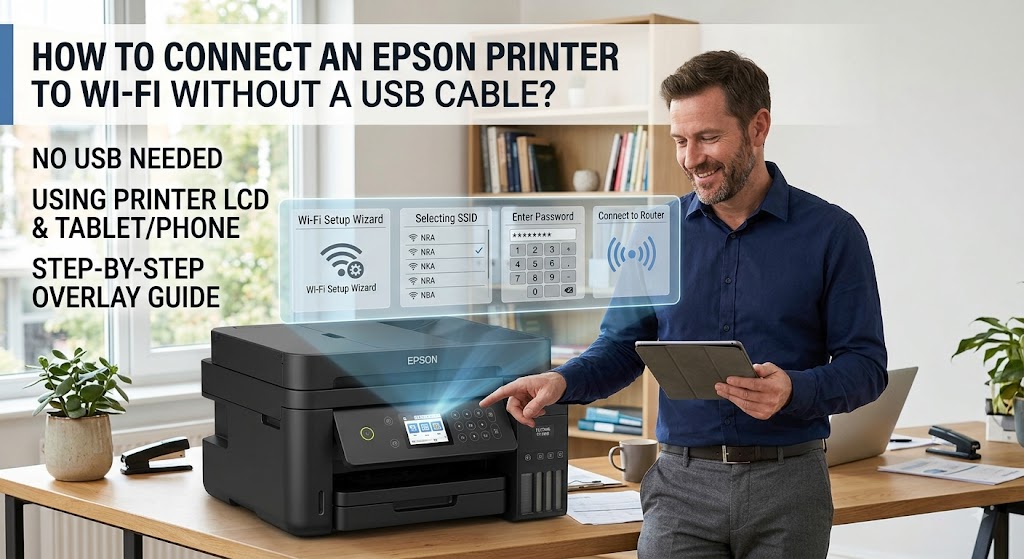
How to Connect an Epson Printer to Wi-Fi Without a USB Cable?
Wireless printing lets you print documents from your computer, smartphone, or tablet without connecting a USB cable. Most modern Epson printers include built-in Wi-Fi, making it easy to connect directly to your home or office network. If you are setting up your printer for the first time or have changed your wireless network, you can complete the setup without using a USB cable.
The process is simple as long as you have your Wi-Fi network name and password. Once connected, your Epson printer can communicate with all compatible devices on the same network.
What You Need Before You Begin
Before starting the wireless setup, make sure you have:
-
A working Wi-Fi network.
-
Your Wi-Fi network name.
-
The correct Wi-Fi password.
-
An Epson printer with built-in wireless capability.
-
A computer or mobile device connected to the same Wi-Fi network.
Having this information ready makes the setup process faster.
Turn On the Epson Printer
-
Power on the printer and wait until it finishes starting.
-
If the printer is already connected to another wireless network, you may need to disconnect or reset the network settings before connecting to the new Wi-Fi.
Open the Wireless Settings
-
Go to the printer's Wi-Fi, Wireless, or Network Settings menu.
-
Choose the option to set up a wireless connection.
-
The printer will begin searching for nearby Wi-Fi networks.
Select Your Wi-Fi Network
-
When the available wireless networks appear, select your Wi-Fi network from the list.
-
Be sure to choose the correct network if several are available.
Enter the Wi-Fi Password
-
Carefully type your Wi-Fi password using the printer's control panel.
-
Remember that wireless passwords are case-sensitive.
-
Wait for the printer to verify the password and connect to the network.
Confirm the Connection
-
Once the printer connects successfully, the Wi-Fi indicator light becomes steady or the display confirms the wireless connection.
-
Your Epson printer is now connected to your Wi-Fi network.
Add the Printer to Your Computer
-
After the printer joins the wireless network, open your computer's printer settings.
-
Search for available printers on the network.
-
Select your Epson printer and complete the installation if prompted.
Connect Using the Epson Smart Panel App
-
If your Epson printer supports the Epson Smart Panel app, you can use the app to complete the wireless setup from your smartphone or tablet.
-
The app guides you through each step and helps detect the printer automatically.
Restart the Printer and Router if Needed
-
If the printer cannot connect to Wi-Fi, restart both the printer and the wireless router.
-
After both devices restart, repeat the wireless setup.
-
Temporary communication issues are often resolved with a restart.
Check the Wi-Fi Band
-
Many Epson printers support the 2.4 GHz Wi-Fi band.
-
If your router broadcasts both 2.4 GHz and 5 GHz networks, make sure you select the compatible network for your printer.
Update the Printer Driver
-
After connecting to Wi-Fi, install or update the latest printer driver for your Epson printer model.
-
An updated driver helps your computer communicate with the printer more reliably.
Update the Printer Firmware
-
Firmware updates improve wireless stability, fix software bugs, and increase compatibility with newer routers.
-
Keeping the firmware updated helps prevent future connection issues.
Print a Test Page
-
Once the setup is complete, print a test page.
-
A successful test print confirms that the printer is connected correctly and ready for wireless printing.
Common Reasons the Wireless Setup Fails
If your Epson printer cannot connect without a USB cable, one of these issues may be responsible:
-
Incorrect Wi-Fi password.
-
Weak wireless signal.
-
Unsupported Wi-Fi band.
-
Printer too far from the router.
-
Outdated printer driver.
-
Outdated printer firmware.
-
Router communication problems.
-
Incorrect network settings.
-
Temporary software issues.
-
Printer network configuration errors.
-
Wireless interference.
-
Previous Wi-Fi settings causing conflicts.
Checking these possible causes can help you complete the setup more quickly.
Tips for a Stable Wireless Connection
Following these simple practices can help keep your Epson printer connected.
-
Place the printer within range of the router.
-
Keep the printer driver updated.
-
Install firmware updates regularly.
-
Restart the printer occasionally.
-
Keep your router firmware updated.
-
Save your Wi-Fi password in a secure place.
-
Reconnect the printer whenever your network changes.
-
Print a test page after completing the setup.
These habits help maintain reliable wireless printing.
FAQs
Can I connect my Epson printer to Wi-Fi without a USB cable?
Yes. Most Epson wireless printers can connect directly to a Wi-Fi network using the printer's control panel or the Epson Smart Panel app.
What do I need before connecting my printer?
You need a working Wi-Fi network, the network name, the correct Wi-Fi password, and a wireless-enabled Epson printer.
Why won't my Epson printer connect to Wi-Fi?
This is usually caused by an incorrect Wi-Fi password, weak signal, unsupported Wi-Fi band, or outdated printer software.
Should I update the printer driver after connecting?
Yes. Updating the printer driver improves communication between your computer and the printer.
Why should I update the printer firmware?
Firmware updates improve wireless stability, fix software issues, and enhance compatibility with newer routers.
Conclusion
Connecting an Epson printer to Wi-Fi without a USB cable is simple when you have the correct network information and follow the proper setup steps. Most connection problems are caused by incorrect passwords, weak Wi-Fi signals, outdated software, or router settings.
By selecting the correct wireless network, entering the right password, updating the printer driver and firmware, and confirming the connection with a test page, you can enjoy reliable wireless printing from all your compatible devices.
How to Reach Our On-Call Support Team
Getting the help, you need is just a phone call away: