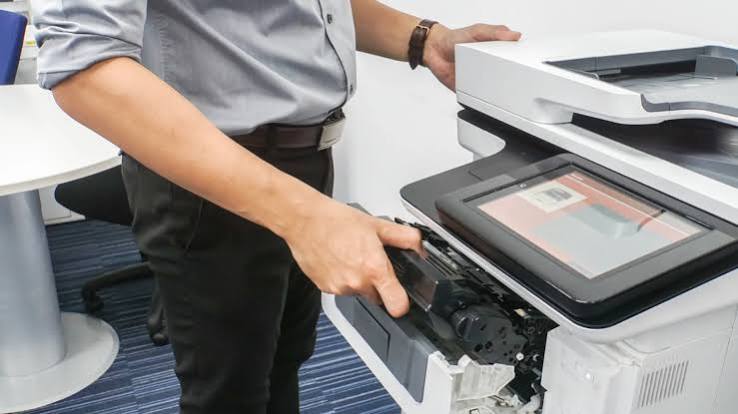
Why is my printer not printing and how do I fix it?
A printer that suddenly stops printing can be very frustrating. You may have an important document, school project, office report, or invoice ready to print, but nothing happens when you select the print option. In some cases, the printer may make sounds but produce no page. At other times, documents remain stuck in the print queue or the printer appears offline on your computer.
Why Is My Printer Not Printing?
Before trying to fix the printer, it is helpful to understand why the problem may be happening.
A printer needs power, paper, ink or toner, a stable connection, and proper communication with your computer. If any of these areas have a problem, printing may stop.
Common causes include connection problems, printer errors, paper jams, cartridge issues, stuck print jobs, and outdated printer software.
Finding the cause makes troubleshooting easier and faster.
Check Whether the Printer Is Turned On
-
Start with the printer power.
-
Look at the printer screen or power light. Make sure the printer is turned on and has completed its startup process.
-
If the printer does not respond, check the power cable. Make sure it is connected securely to the printer and power source.
-
Turn the printer off and back on.
-
A simple power problem can sometimes prevent all printing tasks.
Restart the Printer
-
Temporary printer errors may stop print jobs from processing.
-
Turn off the printer and wait until it completely shuts down. Disconnect the power cable for a short time.
-
Reconnect the cable and turn the printer back on.
-
Wait for the printer to become ready before trying to print.
-
Restarting refreshes the printer system and may clear temporary errors.
Restart Your Computer
-
The printer may be working correctly while your computer has a temporary communication problem.
-
Restart your computer and wait until the system loads completely.
-
After restarting, check the printer connection and send a small document to print.
-
Restarting both devices can often restore communication.
Check the Printer Connection
-
Your computer must communicate with the printer before printing can begin.
-
If you use a cable connection, check that the cable is securely connected at both ends.
-
Inspect the cable for visible damage.
-
For wireless printing, make sure the printer and computer are connected to the same wireless network.
-
A stable connection is important for reliable printing.
Check Whether the Printer Is Offline
-
A printer may appear offline even when it is turned on.
-
Open the printer settings on your computer and review the printer status.
-
If the printer is marked offline or paused, change the setting to allow normal printing.
-
After updating the printer status, try printing again.
Select the Correct Printer
-
If your computer has used several printers, the wrong printer may be selected.
-
Open the printer list and locate the printer you are currently using.
-
Select it before sending the document to print.
-
You can also make it your preferred printer if you use it regularly.
-
This ensures print jobs are sent to the correct device.
Clear the Print Queue
-
A stuck print job can block every document waiting behind it.
-
Open the print queue and review pending documents.
-
Cancel documents that are stuck or no longer needed.
-
After clearing the queue, restart the printer.
-
Send a new test document to check whether printing has resumed.
Check the Paper Tray
-
A printer cannot print without properly loaded paper.
-
Check the paper tray and make sure enough paper is available.
-
Arrange the paper neatly and adjust the paper guides carefully.
-
Avoid loading folded, wet, or damaged paper.
-
Correct paper loading helps prevent feeding problems.
Look for a Paper Jam
-
Paper jams are a common reason printers stop working.
-
Turn off the printer before checking for jammed paper.
-
Open the printer covers and inspect the paper path carefully.
-
Remove visible paper slowly. Avoid pulling the paper with excessive force because it may tear.
-
Check for small pieces of paper that may remain inside.
-
Close the printer covers securely before turning it back on.
Common Reasons a Printer Stops Printing
Several issues can prevent a printer from printing.
Common causes include:
-
Printer turned off.
-
Loose printer connection.
-
Printer appearing offline.
-
Stuck print queue.
-
Paper jam.
-
Empty paper tray.
-
Low ink or toner.
-
Cartridge detection problem.
-
Blocked printhead.
-
Outdated printer driver.
-
Wireless network problems.
-
Temporary printer errors.
Checking these areas can help identify the problem quickly.
Tips to Prevent Printer Problems
-
Regular printer care can reduce printing problems.
-
Keep the printer clean and use suitable paper. Check ink or toner levels before starting large print jobs.
-
Keep printer software and your computer updated.
-
Maintain a stable wireless connection when using wireless printing.
-
Clear stuck print jobs and restart the printer occasionally.
-
Handle cartridges carefully and install them correctly.
-
These simple habits can improve printer reliability.
FAQs
Why is my printer connected but not printing?
A stuck print queue, incorrect printer selection, offline status, outdated driver, or printer error may prevent printing.
Can restarting my printer fix the problem?
Yes. Restarting can clear temporary printer errors and refresh communication with your computer.
Why are my documents stuck in the print queue?
A damaged print job, printer connection problem, or printing system error may cause documents to remain stuck.
Can low ink stop my printer from printing?
Yes. Some printers may stop printing when an ink or toner cartridge is empty or not detected correctly.
Why is my wireless printer not printing?
The printer may be connected to a different network, have a weak wireless signal, or experience a temporary communication problem.
Conclusion
A printer may stop printing because of a power issue, connection problem, paper jam, empty cartridge, stuck print queue, outdated driver, or temporary printer error. The best way to fix the problem is to start with simple troubleshooting.
How to Reach Our On-Call Support Team
Getting the help, you need is just a phone call away: