Printer Connected but Not Printing – How to Fix It
Few printer problems are more frustrating than seeing your printer connected and ready, only to discover that it refuses to print. Whether you are working from home, running a business, or printing important school documents, a printer that will not print can cause unnecessary delays and stress.
In many cases, the printer appears online, the connection is active, and there are no visible error messages. However, documents remain stuck in the queue or disappear without being printed. This issue can affect almost any printer brand and may occur with both wired and wireless devices.
Why Is My Printer Connected but Not Printing?
Although the printer appears connected, several underlying issues may prevent it from processing print jobs.
Incorrect Default Printer
If another printer is selected as the default device, your documents may be sent to the wrong destination.
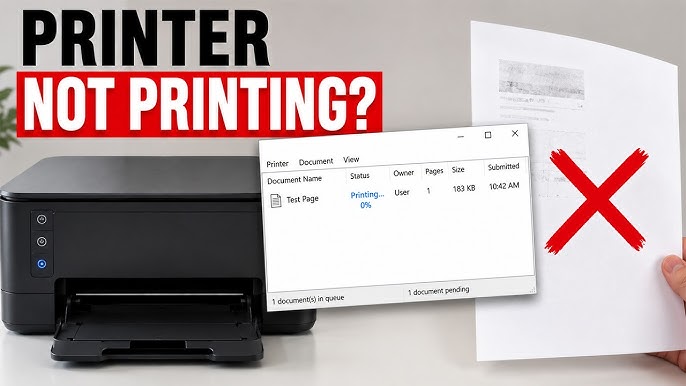
Stuck Print Queue
A failed print job can remain in the queue and block future print requests.
Low Ink or Toner
Printers may stop printing when ink cartridges or toner levels become too low.
Outdated Printer Drivers
Printer drivers are essential for communication between your computer and printer. Corrupted or outdated drivers can cause printing failures.
Paper Jam Issues
Even a small paper jam can prevent the printer from completing print jobs.
Printer Offline Settings
A printer may appear connected physically but still be configured to work offline.
Software Conflicts
Recent software updates or operating system changes can interfere with printer communication.
Connection Instability
Wireless signal interruptions or loose cables can affect communication even when the printer appears connected.
Signs of a Connected Printer That Is Not Printing
You may notice the following symptoms:
-
Documents remain stuck in the print queue.
-
Print jobs disappear without printing.
-
The printer does not respond to print commands.
-
Error messages appear during printing.
-
Blank pages are produced.
-
The printer remains idle despite receiving print jobs.
-
Printing stops unexpectedly.
Recognizing these symptoms can help identify the source of the problem.
How to Fix a Connected Printer That Is Not Printing
Check the Printer Status
Ensure that the printer is powered on and shows a ready status. Verify that there are no warning messages displayed on the printer screen.
Restart the Printer
Turn off the printer, wait briefly, and then turn it back on. Restarting often resolves temporary communication issues.
Restart Your Computer
Restarting your computer refreshes system processes and can restore communication between the computer and printer.
Verify the Connection
For wireless printers, confirm that the printer is connected to the correct network. For wired printers, inspect the cable and reconnect it if necessary.
Check Ink or Toner Levels
Review the printer's supply levels and replace any cartridges that are empty or nearly empty.
Clear the Print Queue
Remove all pending print jobs and then send a fresh document to print.
Set the Correct Default Printer
Open your printer settings and verify that the correct printer is selected as the default device.
Disable Offline Mode
Check printer settings and ensure the printer is not configured to work offline.
Inspect for Paper Jams
Carefully inspect the printer and remove any jammed paper or paper fragments.
Update the Printer Driver
Install the latest printer driver available for your printer model and operating system.
Restart the Print Spooler
The print spooler manages print jobs before they reach the printer. Restarting this service can resolve communication issues.
Reinstall the Printer
If the problem persists, remove the printer from your device and install it again to refresh the configuration.
Print a Test Page
After completing the troubleshooting steps, print a test page to verify that the printer is functioning correctly.
Tips to Prevent Future Printing Problems
Following these best practices can help maintain reliable printer performance.
-
Keep printer drivers updated.
-
Monitor ink and toner levels regularly.
-
Maintain a stable network connection.
-
Use quality printing supplies.
-
Clear completed print jobs frequently.
-
Perform routine printer maintenance.
-
Keep the printer clean and dust-free.
-
Update your operating system regularly.
-
Restart the printer occasionally.
-
Use the correct paper type for printing tasks.
Common Mistakes to Avoid
Avoiding these mistakes can reduce recurring printing issues.
-
Ignoring low ink or toner warnings.
-
Leaving failed print jobs in the queue.
-
Using outdated printer drivers.
-
Disconnecting the printer during printing.
-
Ignoring paper jam notifications.
-
Selecting the wrong default printer.
-
Skipping routine maintenance.
Being aware of these mistakes can improve printer reliability and reduce downtime.
FAQs
Why is my printer connected but not printing?
This can happen because of a stuck print queue, outdated drivers, low ink levels, incorrect settings, paper jams, or communication issues.
Can restarting the printer solve the problem?
Yes. Restarting the printer often clears temporary software and communication errors.
Why are my print jobs stuck in the queue?
Failed print jobs, software conflicts, or print spooler issues can prevent documents from printing properly.
Should I update my printer driver?
Yes. Updated drivers improve compatibility, communication, and overall printer performance.
How can I prevent printing issues in the future?
Keep your printer updated, monitor supply levels, perform regular maintenance, maintain stable connections, and clear print jobs regularly.
Conclusion
A printer that is connected but not printing can be frustrating, especially when you have important documents waiting to be printed. Fortunately, most printing problems are caused by issues such as outdated drivers, incorrect settings, low ink levels, paper jams, or communication errors rather than hardware failure.
How to Reach Our On-Call Support Team
Getting the help, you need is just a phone call away: