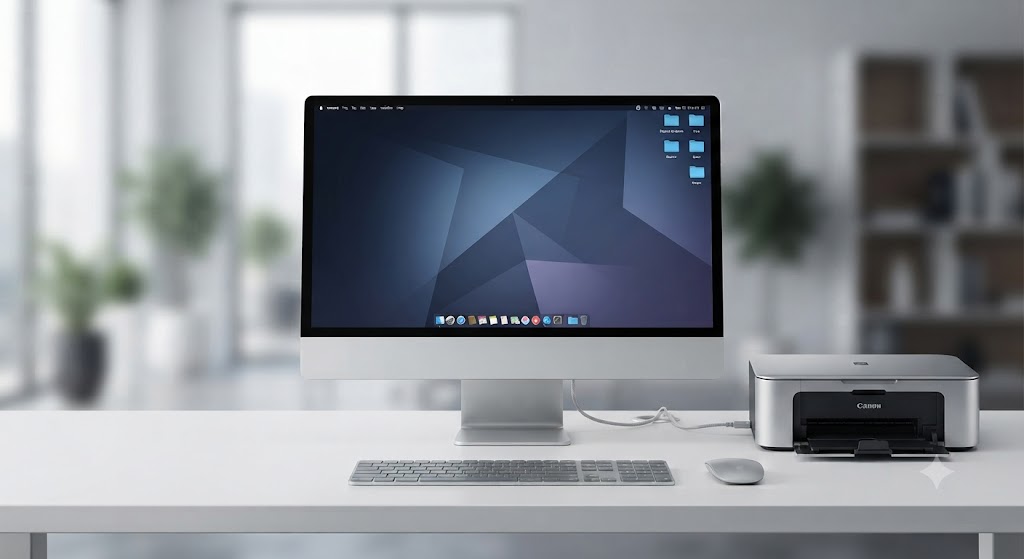
How do I get my computer to recognise my printer?
Connecting a printer to your computer should be a simple process, but sometimes your computer cannot detect the printer. This problem can occur with both wired and wireless printers and may prevent you from printing important documents. You might notice that the printer does not appear in your list of devices, shows as unavailable, or displays an error message when you try to print.
In most cases, this issue is caused by connection problems, outdated printer drivers, incorrect settings, temporary software conflicts, or network communication issues. Fortunately, these problems can usually be resolved without replacing the printer or your computer.
Why Doesn't My Computer Recognize My Printer?
Your computer and printer must communicate correctly before printing can begin.
If this communication is interrupted, your computer may fail to detect the printer.
The problem may involve hardware, software, or network settings.
Understanding the possible causes helps make troubleshooting easier.
Restart the Printer
-
Temporary printer errors can prevent detection.
-
Turn off the printer completely.
-
Disconnect the power cable for a short time.
-
Reconnect the cable and turn the printer back on.
-
Allow the printer to finish starting before checking the connection again.
-
Restarting refreshes the printer system.
Restart Your Computer
-
Your computer may also experience temporary software conflicts.
-
Restart the computer completely.
-
After the restart, check whether the printer appears in your device list.
-
Many connection issues disappear after restarting.
Check the Printer Connection
-
If you are using a wired printer, make sure the cable is securely connected to both the printer and the computer.
-
If you are using a wireless printer, verify that the printer is connected to the same Wi-Fi network as your computer.
-
A stable connection is essential for successful communication.
Update the Printer Driver
-
The printer driver allows your computer to communicate with the printer.
-
If the driver is outdated, missing, or damaged, your computer may not recognize the printer.
-
Install the latest printer driver that matches your printer model.
-
Restart your computer after updating the driver.
Remove and Add the Printer Again
-
If the printer still is not detected, remove it from your computer settings.
-
Restart both the printer and your computer.
-
Add the printer again.
-
A fresh installation often restores communication.
Check Printer Settings
-
Open the printer settings on your computer.
-
Verify that the correct printer is selected as the default printer.
-
Also check that the printer is not showing an offline or paused status.
-
Correct settings help your computer recognize the printer properly.
Restart the Wireless Router
-
If you use a wireless printer, restart the router.
-
Wait until the network reconnects completely.
-
Reconnect the printer to the network if necessary.
-
Refreshing the network often restores communication.
Install Operating System Updates
-
Updated operating system software improves compatibility with printers.
-
Check for available system updates.
-
Install any available updates.
-
Restart your computer after the updates finish.
-
Updated software helps improve printer detection.
Check for Print Queue Problems
-
A blocked print queue can sometimes interfere with printer communication.
-
Open the print queue.
-
Remove any pending print jobs.
-
Restart the printer and try printing again.
-
A clean print queue improves communication.
Test the Printer
-
After completing the troubleshooting steps, print a test page.
-
If the printer responds correctly, your computer has successfully recognized the printer.
-
Continue using the printer normally.
Common Reasons a Computer Cannot Recognize a Printer
Several issues can prevent successful printer detection.
Common causes include:
-
Loose cable connection.
-
Weak wireless network.
-
Printer connected to the wrong Wi-Fi network.
-
Outdated printer driver.
-
Missing printer driver.
-
Damaged printer driver.
-
Incorrect printer settings.
-
Printer showing offline.
-
Stuck print queue.
-
Temporary software conflicts.
-
Operating system compatibility issues.
-
Network communication problems.
Reviewing these possibilities helps identify the issue more quickly.
Tips to Prevent Printer Detection Problems
Regular maintenance helps improve printer performance.
-
Keep the printer driver updated.
-
Maintain a stable network connection.
-
Restart the printer occasionally.
-
Install operating system updates regularly.
-
Check printer settings from time to time.
-
Clear completed print jobs from the queue.
-
Keep wired connections secure.
-
Verify the printer remains connected to the correct network.
These simple habits help reduce future connection issues.
FAQs
Why won't my computer recognize my printer?
This is commonly caused by connection problems, outdated printer drivers, incorrect settings, software conflicts, or network communication issues.
How do I reconnect my printer to my computer?
Restart both devices, check the connection, update the printer driver, remove and add the printer again, and verify your printer settings.
Can an outdated printer driver prevent my computer from detecting the printer?
Yes. A damaged or outdated printer driver can stop your computer from communicating with the printer.
Why should I restart my printer?
Restarting refreshes the printer system and clears temporary software errors that may affect communication.
Can a Wi-Fi problem stop my computer from finding the printer?
Yes. If the printer and computer are not connected to the same wireless network, the computer may not detect the printer.
When should I get printer help?
Additional printer help may be useful if your computer still cannot recognize the printer after completing the recommended troubleshooting steps.
Conclusion
If your computer does not recognize your printer, the problem is usually related to communication rather than hardware failure. Loose connections, outdated printer drivers, incorrect settings, software conflicts, and network issues are among the most common causes.
Restarting your printer and computer, checking the connection, updating the printer driver, reinstalling the printer, clearing the print queue, and installing operating system updates can solve most detection problems.
How to Reach Our On-Call Support Team
Getting the help, you need is just a phone call away: