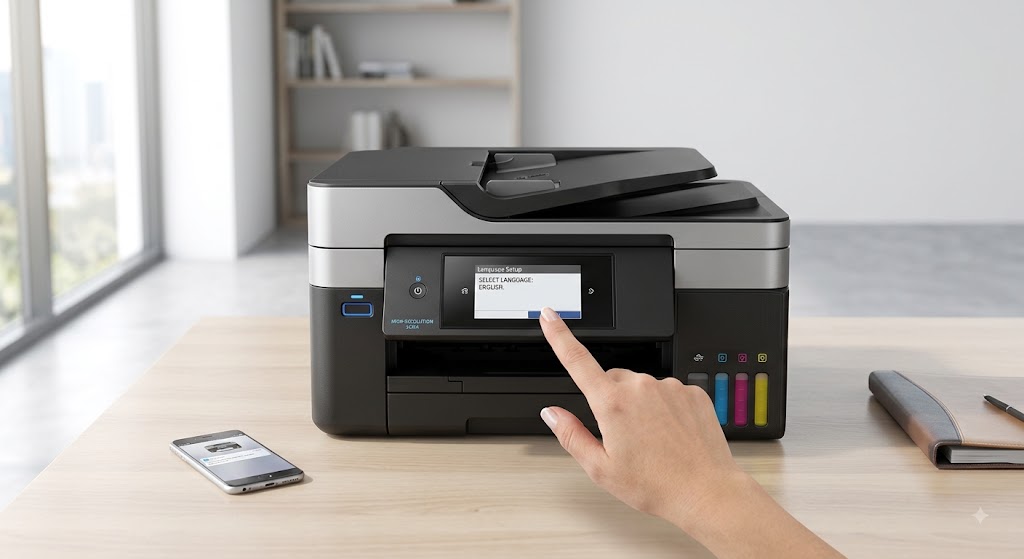
How to set up a mobile printer?
Mobile printers are designed to let you print documents, photos, invoices, labels, and other files while you are away from a traditional office. Their compact size and wireless connectivity make them a great choice for students, business professionals, delivery drivers, field workers, and anyone who needs printing on the go.
Setting up a mobile printer is usually quick and simple. Most models support wireless connections, allowing you to print directly from a smartphone, tablet, laptop, or desktop computer. However, if the printer is not configured correctly, you may experience connection problems, failed print jobs, or issues with printer detection.
The good news is that most setup problems are easy to fix. By preparing the printer, connecting it to your device, installing the correct printer driver if needed, and checking your wireless settings, you can start printing in just a few minutes.
Prepare the Mobile Printer
-
Before beginning the setup, make sure the printer is ready to use.
-
Charge the battery if your mobile printer has one.
-
Install the ink, toner, or paper required for printing.
-
Turn on the printer and allow it to complete its startup process.
-
A fully prepared printer helps ensure a smooth installation.
Choose the Connection Method
-
Mobile printers usually support one or more wireless connection options.
-
Select the connection method that works best with your device.
-
Using the appropriate connection method helps improve printing performance and reliability.
Connect the Printer to Wi-Fi
-
If your printer supports Wi-Fi, connect it to your wireless network.
-
Open the printer's wireless settings.
-
Choose your Wi-Fi network and enter the correct password.
-
Wait until the printer confirms the connection.
-
A stable Wi-Fi connection allows multiple devices to print easily.
Pair the Printer with Your Mobile Device
-
If your printer supports direct wireless pairing, enable the wireless feature on both devices.
-
Follow the printer's instructions to complete the pairing process.
-
Wait until your phone or tablet confirms the connection.
Install the Correct Printer Driver or App
-
Some mobile printers require a compatible printer driver or mobile printing application.
-
Install the software that matches your printer model and operating system.
-
Keeping the software updated helps improve compatibility and performance.
Add the Printer to Your Device
-
Open the printer settings on your phone, tablet, or computer.
-
Search for available printers.
-
Select your mobile printer from the list.
-
Complete the setup process.
-
If needed, set it as the default printer.
Print a Test Page
-
After the installation is complete, print a test page.
-
A successful test confirms that the printer is connected correctly and communicating with your device.
Restart the Printer and Device
-
If the printer is not detected, restart both the printer and the device you are using.
-
A simple restart often resolves temporary connection problems.
Keep the Software Updated
-
Install updates for your operating system, printer driver, or mobile printing application whenever they become available.
-
Updated software helps improve compatibility, security, and printer performance.
Check the Battery Level
-
If your mobile printer uses a rechargeable battery, make sure it has enough power before printing.
-
A low battery may interrupt the setup process or prevent successful printing.
Common Mobile Printer Setup Problems
Several issues can prevent a successful installation.
Common causes include:
-
Weak wireless connection.
-
Low battery level.
-
Incorrect network password.
-
Outdated printer driver.
-
Outdated mobile printing application.
-
Printer connected to a different network.
-
Temporary software conflicts.
-
Printer not detected.
-
Operating system compatibility issues.
-
Existing driver conflicts.
-
Interrupted installation process.
-
Incorrect printer settings.
Understanding these issues makes troubleshooting easier.
Tips for Reliable Mobile Printing
Following a few simple habits helps keep your mobile printer working smoothly.
-
Keep the printer fully charged.
-
Update the printer driver or mobile printing application regularly.
-
Maintain a stable wireless connection.
-
Keep your operating system updated.
-
Restart the printer occasionally.
-
Verify printer settings before printing.
-
Print a test page after setup.
-
Store the printer safely when traveling.
These practices help reduce future printing problems.
FAQs
What is a mobile printer?
A mobile printer is a compact printer designed to print wirelessly from smartphones, tablets, laptops, and other portable devices.
Do I need a printer driver to use a mobile printer?
Some mobile printers require a compatible printer driver or mobile printing application, while others are recognized automatically.
Why won't my mobile printer connect?
Connection problems are often caused by weak wireless signals, incorrect network settings, outdated software, or low battery power.
Should I print a test page after setup?
Yes. A test page confirms that the printer is connected correctly and working properly.
Why should I keep my printer software updated?
Software updates improve compatibility, fix bugs, enhance security, and improve overall printing performance.
When should I get printer help?
Additional printer help may be useful if your mobile printer continues having setup or connection problems after completing the recommended troubleshooting steps.
Conclusion
Setting up a mobile printer is a simple process when you prepare the printer properly and use the correct connection method. Connecting the printer to Wi-Fi, pairing it with your device, installing the appropriate driver or mobile printing application, and printing a test page can help ensure a successful setup.
Regular software updates, a strong wireless connection, and proper battery maintenance will keep your mobile printer working efficiently. By following these steps, you can enjoy convenient printing from almost anywhere. If setup problems continue after completing the recommended troubleshooting steps, additional printer help may be needed to identify and resolve the underlying issue.
How to Reach Our On-Call Support Team
Getting the help, you need is just a phone call away: