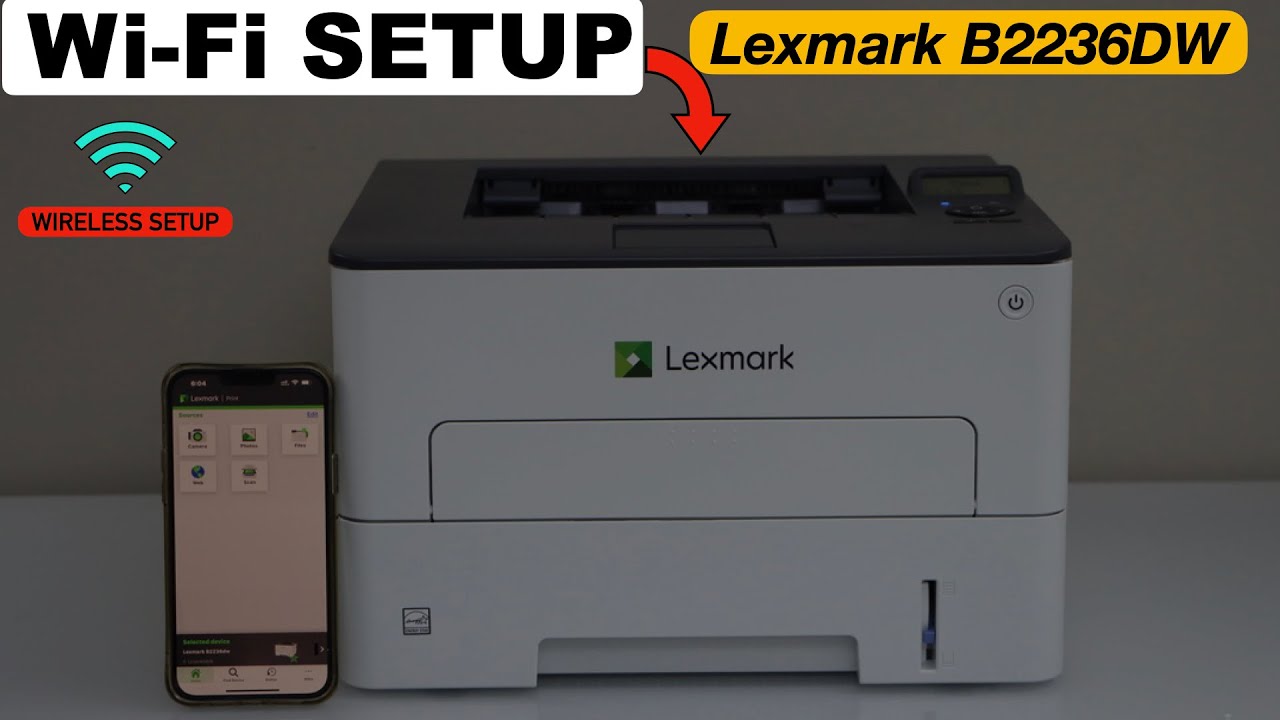
How do I set up my Lexmark wireless printer?
A wireless printer makes printing more convenient by allowing you to print documents, photos, and other files without the need for physical cables. Lexmark wireless printers are designed to work with computers, laptops, smartphones, and tablets connected to the same wireless network. Once the printer is set up correctly, you can enjoy flexible printing from almost anywhere within your network range.
Things to Prepare Before Setting Up Your Lexmark Wireless Printer
Preparing everything before beginning the installation helps make the process smoother.
Choose a Good Location
Place the printer on a stable surface within the wireless coverage area of your router.
Connect the Power Cable
Plug the printer into a reliable power outlet and switch it on.
Load Paper
Insert clean and compatible paper into the paper tray.
Install the Ink or Toner Cartridge
Install the appropriate ink cartridges or toner cartridge before beginning the setup.
Verify Your Wireless Network
Ensure that your Wi-Fi network is active and your computer is connected to the same network.
How to Set Up Your Lexmark Wireless Printer
Turn On the Printer
Power on the printer and allow it to complete its startup process.
Access the Wireless Settings
Open the printer's network or wireless menu using the control panel.
Enable Wireless Mode
Activate the wireless feature if it is not already enabled.
Search for Available Networks
Allow the printer to scan for nearby wireless networks.
Select Your Wi-Fi Network
Choose your wireless network from the available list.
Enter the Wireless Password
Type the correct Wi-Fi password carefully to establish the connection.
Install the Printer Software
Install the appropriate Lexmark printer software on your computer so it can communicate with the printer.
Allow the Computer to Detect the Printer
Wait while the software locates the printer on the wireless network.
Complete the Installation
Finish the remaining installation steps provided by the setup program.
Print a Test Page
Print a sample document to verify that the printer has been installed successfully.
Common Lexmark Wireless Printer Setup Problems
Some users may encounter installation difficulties during setup.
Printer Not Detected
The computer may fail to locate the printer because of connection or software issues.
Wireless Connection Failure
Incorrect network information or a weak wireless signal may interrupt the connection process.
Software Installation Problems
Damaged installation files or outdated operating systems may prevent successful installation.
Incorrect Wireless Password
Entering the wrong Wi-Fi password prevents the printer from joining the network.
Weak Wireless Signal
If the printer is too far from the router, the connection may become unstable.
How to Fix Lexmark Wireless Printer Setup Problems
Restart the Printer
Turn off the printer, wait briefly, and then switch it back on.
Restart the Router
Restarting the wireless router refreshes the network connection.
Restart Your Computer
Restart your computer to refresh system processes and improve printer detection.
Verify the Wireless Password
Ensure that the Wi-Fi password entered during setup is correct.
Move the Printer Closer
Place the printer closer to the wireless router if the signal is weak.
Reinstall the Printer Software
If the installation was interrupted, reinstall the printer software and repeat the setup process.
Print Another Test Page
After troubleshooting, print another sample page to confirm that the setup has been completed successfully.
Tips for Better Wireless Printer Performance
Following these practices helps maintain reliable wireless printing.
-
Keep the printer within range of the wireless router.
-
Maintain a strong Wi-Fi signal.
-
Keep the printer software updated.
-
Use compatible ink or toner cartridges.
-
Load clean and suitable paper.
-
Perform routine printer maintenance.
-
Restart the printer occasionally.
-
Keep your operating system updated.
-
Clean the printer regularly.
-
Print regularly to maintain smooth operation.
Common Mistakes to Avoid
Avoid these common mistakes during setup.
-
Entering the incorrect wireless password.
-
Selecting the wrong Wi-Fi network.
-
Interrupting the installation process.
-
Ignoring software updates.
-
Placing the printer too far from the router.
-
Forgetting to install the printer software.
-
Turning off the printer before setup is complete.
Avoiding these mistakes improves the chances of a successful installation.
FAQs
Why won't my Lexmark printer connect to Wi-Fi?
This may happen because of an incorrect Wi-Fi password, weak wireless signal, outdated printer software, or networWhy can't my computer find my Lexmark wireless printer?k configuration issues.
Should I install the printer software before using my Lexmark printer?
Yes. Installing the correct printer software allows your computer to communicate properly with the printer and enables all available features.
The issue may be caused by connection problems, incorrect network settings, or the printer not being connected to the same Wi-Fi network as your computer.
Can I print wirelessly from multiple devices?
Yes. Once the printer is connected to your wireless network, compatible devices on the same network can send print jobs to the printer.
How can I keep my Lexmark wireless printer working properly?
Keep the printer software updated, maintain a stable Wi-Fi connection, perform routine maintenance, use compatible ink or toner cartridges, and clean the printer regularly.
Conclusion
Setting up your Lexmark wireless printer correctly ensures reliable printing and a stable connection with your computer and other devices. By preparing the printer, connecting it to your wireless network, installing the required software, and verifying the connection with a test print, you can complete the installation with confidence.
How to Reach Our On-Call Support Team
Getting the help, you need is just a phone call away: