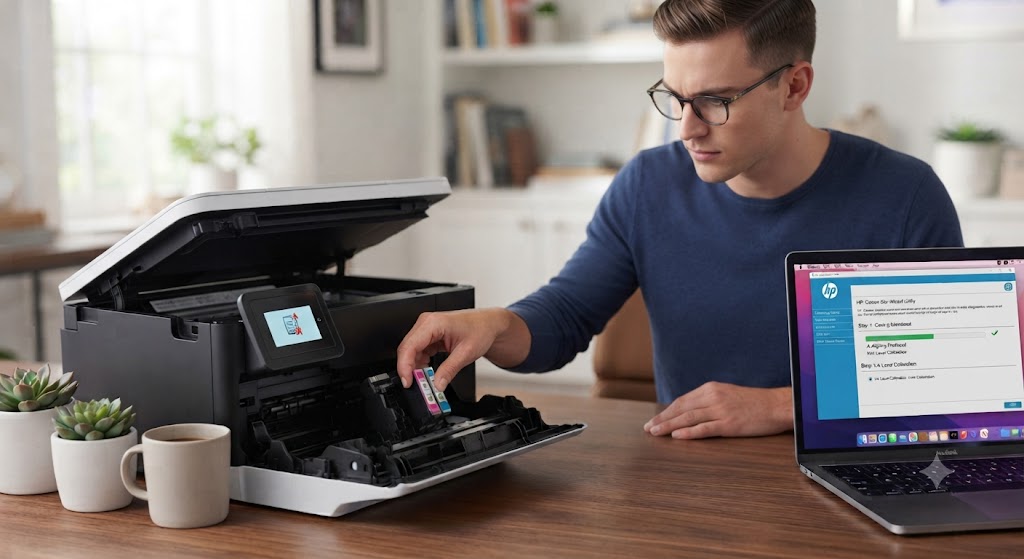
How to Identify and Fix Printer Hardware Errors?
Printers are reliable devices, but like any electronic equipment, they can sometimes develop hardware problems. Unlike software or connection issues, hardware errors involve the physical components inside the printer. These problems can prevent the printer from turning on, feeding paper, printing clearly, or completing print jobs.
Printer hardware errors can appear suddenly or develop over time due to regular use. You may notice warning messages, unusual noises, paper feed problems, poor print quality, or the printer refusing to respond. While some hardware issues require repairs, many can be identified and resolved with simple troubleshooting.
Before assuming that your printer is damaged, it is important to inspect the printer carefully and rule out common causes such as loose connections, dirty rollers, improperly installed cartridges, or paper jams. In many cases, these simple checks can restore normal printer operation.
What Are Printer Hardware Errors?
Hardware errors involve the physical parts of your printer.
These include the paper feed system, rollers, printheads, ink or toner cartridges, sensors, power supply, and other internal components.
When one of these parts is not working properly, the printer may stop printing or display an error message.
Understanding the symptoms helps you locate the problem.
Check the Power Connection
-
If the printer does not turn on, inspect the power connection first.
-
Make sure the power cable is securely connected.
-
Verify that the power outlet is working properly.
-
Reconnect the cable and restart the printer.
-
Many power-related issues are caused by loose connections.
Inspect for Paper Jams
-
Paper jams are among the most common hardware problems.
-
Open the printer carefully and inspect the entire paper path.
-
Remove any jammed paper gently.
-
Also check for small paper fragments that may remain inside the printer.
Examine the Ink or Toner Cartridges
-
Incorrectly installed cartridges can prevent proper printing.
-
Remove the cartridges and reinstall them carefully.
-
If you recently installed new cartridges, confirm that all protective packaging has been removed.
-
Proper installation is essential for reliable printing.
Clean the Printhead
-
For inkjet printers, clogged printheads can affect print quality.
-
Use the printer's built-in cleaning feature.
-
After cleaning, print a test page.
-
Repeat the cleaning process if necessary.
Inspect the Paper Feed Rollers
-
Dirty or worn rollers can cause paper feeding problems.
-
Look for dust, paper debris, or visible wear.
-
Clean the rollers gently using the recommended method for your printer.
-
Well-maintained rollers help prevent paper jams.
Restart the Printer
-
Temporary hardware detection errors can sometimes occur.
-
Turn off the printer completely.
-
Disconnect the power cable for a short time.
-
Reconnect the cable and turn the printer back on.
-
Allow the printer to complete its startup process.
Update the Printer Driver
-
Although hardware errors involve physical components, outdated printer drivers can sometimes trigger incorrect error messages.
-
Install the latest printer driver available for your printer model.
-
Restart your computer after updating the driver.
Run a Printer Self-Test
-
Many printers include a built-in self-test feature.
-
Printing a test page helps determine whether the hardware is functioning correctly.
-
If the test page prints normally, the issue may be related to software or printer settings.
Listen for Unusual Noises
-
Grinding, clicking, or repeated mechanical sounds may indicate hardware problems.
-
If unusual noises continue after removing paper jams and checking the printer, avoid forcing the printer to operate.
-
Further inspection may be required.
Common Printer Hardware Errors
Several hardware problems can affect printer performance.
Common issues include:
-
Paper jams.
-
Dirty paper feed rollers.
-
Worn rollers.
-
Clogged printheads.
-
Incorrectly installed cartridges.
-
Damaged ink or toner cartridges.
-
Power connection problems.
-
Printer sensor issues.
-
Mechanical component wear.
-
Internal hardware failures.
-
Printhead alignment problems.
-
Paper feed obstructions.
Reviewing these possibilities helps identify the issue more quickly.
Tips to Prevent Printer Hardware Problems
Regular maintenance extends the life of your printer.
-
Keep the printer clean.
-
Use good-quality paper.
-
Store ink and toner properly.
-
Remove paper jams carefully.
-
Clean the printhead when needed.
-
Inspect rollers regularly.
-
Keep the printer driver updated.
-
Perform routine printer maintenance.
These simple habits help reduce hardware-related issues.
FAQs
What is a printer hardware error?
A printer hardware error involves a physical component of the printer, such as the rollers, printhead, cartridges, sensors, or paper feed system.
How do I know if my printer has a hardware problem?
Common signs include paper jams, unusual noises, poor print quality, power issues, cartridge errors, or repeated hardware warning messages.
Can dirty rollers cause hardware errors?
Yes. Dirty or worn rollers can affect paper feeding and lead to paper jams or other printer problems.
Should I clean the printhead?
Yes. Cleaning the printhead can improve print quality and resolve blank or faded printing issues on inkjet printers.
Why should I update my printer driver?
An updated printer driver improves communication between your computer and printer and may prevent incorrect hardware error messages.
When should I get printer help?
Additional printer help may be useful if hardware errors continue after completing the recommended troubleshooting steps.
Conclusion
Printer hardware errors can interrupt printing, but many of them are caused by simple issues such as paper jams, dirty rollers, incorrectly installed cartridges, or clogged printheads rather than major hardware failures.
Checking the power connection, inspecting the paper path, cleaning the printhead, examining the cartridges, restarting the printer, updating the printer driver, and performing routine maintenance can solve many common hardware problems.
How to Reach Our On-Call Support Team
Getting the help, you need is just a phone call away: