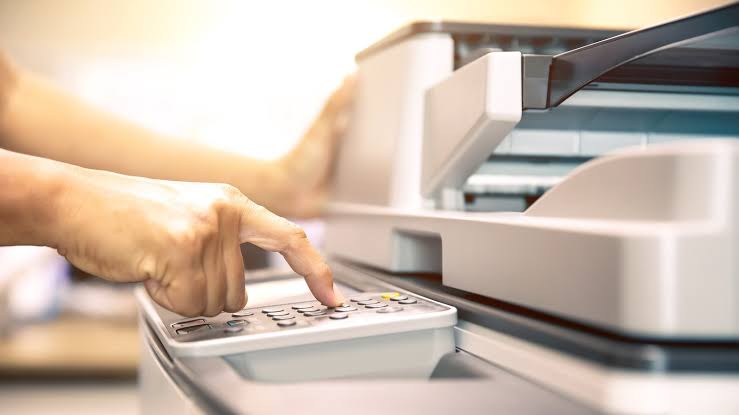
Why is my printer printing extremely slow?
A printer is expected to produce documents quickly and efficiently, whether you are printing school assignments, office reports, photos, or personal files. However, it can be frustrating when your printer suddenly starts printing much slower than usual. A document that normally takes only a short time may seem to take forever, slowing down your work and reducing productivity.
Why Is My Printer Printing So Slowly?
Several components work together during the printing process.
Your computer prepares the document, sends it to the printer, and the printer processes the information before printing.
If any part of this process slows down, printing performance can decrease.
Understanding the possible causes makes troubleshooting much easier.
Restart the Printer
-
Temporary software problems may reduce printer performance.
-
Turn off the printer completely.
-
Disconnect the power cable for a short time.
-
Reconnect the cable and turn the printer back on.
-
Allow the printer to complete its startup process before printing again.
-
Restarting refreshes the printer system.
Restart Your Computer
-
Your computer may also experience temporary software conflicts.
-
Restart the computer completely.
-
Open the document again and try printing.
-
A simple restart often restores normal communication.
Check the Printer Connection
-
A weak or unstable connection may delay print jobs.
-
If you use a cable connection, make sure the cable is securely connected.
-
If you use a wireless printer, verify that both the printer and your computer are connected to the same network.
-
A stable connection improves printing speed.
Check the Print Quality Settings
-
High-quality print settings usually require more time.
-
If you are printing ordinary documents, choose a standard print quality instead of the highest quality option.
-
Lower print quality settings generally improve printing speed while maintaining clear text.
Clear the Print Queue
-
A large number of pending print jobs can slow the printer.
-
Open the print queue.
-
Remove completed or unnecessary print jobs.
-
Restart the printer before sending a new document.
-
A clean print queue helps improve performance.
Check the Printer Driver
-
The printer driver allows your computer to communicate with the printer.
-
If the driver becomes outdated or damaged, printing may become slower.
-
Review the printer driver settings.
-
Update or reinstall the driver if necessary.
-
Restart your computer after completing the installation.
Print Smaller Documents
-
Very large documents containing high-resolution images or complex graphics may take longer to process.
-
If possible, divide large print jobs into smaller sections.
-
This can improve overall printing performance.
Check the Paper Type Settings
-
Using paper settings that do not match the actual paper may slow printing.
-
Verify that the selected paper type matches the paper loaded in the printer.
-
Correct settings help improve efficiency.
Check for Computer Updates
-
Keeping your operating system updated improves compatibility with printers.
-
Review your system update settings.
-
Install available updates.
-
Restart the computer after the updates are complete.
-
Updated software helps improve printer communication.
Print a Test Page
-
After completing the troubleshooting steps, print a test page.
-
If the page prints quickly, the issue has likely been resolved.
-
Continue monitoring printer performance during regular use.
Common Reasons a Printer Prints Slowly
Several different issues can reduce printing speed.
Common causes include:
-
High print quality settings.
-
Outdated printer driver.
-
Damaged printer driver.
-
Weak network connection.
-
Large print jobs.
-
Full print queue.
-
Temporary software conflicts.
-
Incorrect paper settings.
-
Communication problems.
-
Printer memory limitations.
-
Operating system compatibility issues.
-
Printer configuration problems.
Reviewing these possibilities helps identify the cause more quickly.
Tips to Improve Printer Speed
Regular maintenance helps keep your printer working efficiently.
-
Keep the printer driver updated.
-
Restart the printer occasionally.
-
Use a stable network connection.
-
Clear completed print jobs from the queue.
-
Print large documents in smaller sections when possible.
-
Choose suitable print quality settings for everyday documents.
-
Keep your operating system updated.
These simple habits help improve printing performance.
FAQs
Why is my printer printing so slowly?
This is commonly caused by high print quality settings, outdated printer drivers, large print jobs, weak network connections, or a full print queue.
Can print quality affect printing speed?
Yes. Higher print quality settings require more processing time and can slow down printing.
Does an outdated printer driver reduce printer performance?
Yes. A damaged or outdated printer driver can affect communication and reduce printing speed.
Why should I clear the print queue?
A full or damaged print queue can delay new print jobs and reduce printer performance.
Can a weak wireless connection make my printer slower?
Yes. Poor network communication can increase the time needed to send print jobs to the printer.
When should I get printer help?
Additional printer help may be useful if your printer continues printing very slowly after completing the recommended troubleshooting steps.
Conclusion
A printer that prints extremely slowly is usually experiencing communication, software, or configuration issues rather than a hardware failure. High print quality settings, outdated printer drivers, large print jobs, weak network connections, and full print queues are among the most common causes.
Restarting the printer and computer, checking the connection, adjusting print settings, clearing the print queue, and updating the printer driver can improve printing speed in many situations.
How to Reach Our On-Call Support Team
Getting the help, you need is just a phone call away: