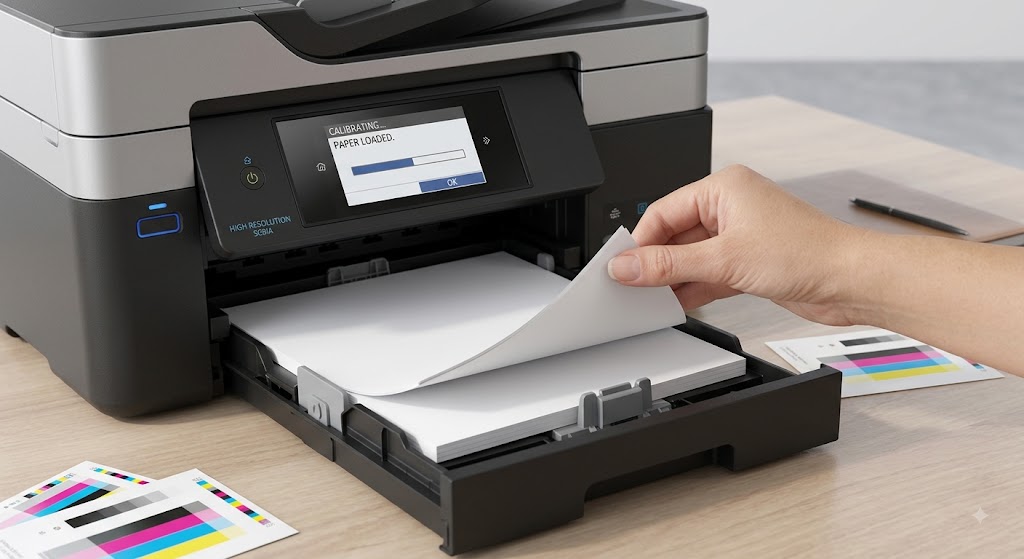
How To Download and Install Correct Printer Drivers: Complete Setup Guide
A printer driver is one of the most important pieces of software for your printer. It acts as a bridge between your computer and the printer, allowing both devices to communicate with each other. Without the correct printer driver, your computer may not recognize the printer, print jobs may fail, or many printer features may not work properly.
Whether you have a wireless or wired printer, installing the correct driver is the first step toward reliable printing. Many computers automatically install printer drivers, but automatic installation does not always work as expected. Sometimes the wrong driver is installed, the installation fails, or the driver becomes outdated after an operating system update.
Fortunately, downloading and installing the correct printer driver is usually a simple process. With the right preparation and a few easy troubleshooting steps, you can get your printer working properly in a short time.
Why Are Printer Drivers Important?
A printer driver allows your computer to send print instructions in a language your printer understands.
Without a compatible driver, the printer may not respond, print incorrectly, or fail to connect.
Installing the correct driver improves communication, stability, print quality, and overall performance.
Identify Your Printer Model
-
Before downloading a driver, find your printer model.
-
The model name is usually printed on the front or top of the printer.
-
Using the correct model ensures you install compatible software.
Check Your Operating System
-
Your printer driver must match your operating system.
-
Using a driver designed for another operating system can cause installation failures or printing errors.
-
Confirm your operating system before beginning the installation.
Remove Older Printer Drivers
-
If an older driver is already installed, remove it before installing the new one.
-
Older drivers can conflict with updated versions and cause communication problems.
-
Restart your computer after removing the previous driver.
Download the Correct Printer Driver
-
Download the latest driver that matches both your printer model and operating system.
-
Using the newest version improves compatibility, reliability, and printer performance.
-
Save the installation file where you can easily find it.
Install the Printer Driver
-
Open the downloaded installation file.
-
Follow each step carefully until the installation is complete.
-
Do not interrupt the installation by disconnecting the printer or restarting your computer.
-
If prompted, restart your computer after the installation finishes.
Connect the Printer
-
After installing the driver, connect your printer.
-
For USB printers, securely connect the cable.
-
For wireless printers, connect the printer to the same Wi-Fi network as your computer.
-
A stable connection allows your computer to detect the printer correctly.
Add the Printer to Your Computer
-
Open your computer's printer settings.
-
Search for available printers.
-
Select your printer and complete the setup.
-
You may also choose to make it your default printer for future print jobs.
Print a Test Page
-
Once everything is installed, print a test page.
-
A successful test confirms that the printer driver is installed correctly and that the printer is communicating with your computer.
Update Your Operating System
-
Keeping your operating system updated improves compatibility with printer drivers.
-
Install available updates regularly and restart your computer if necessary.
-
Updated software helps prevent future driver issues.
Common Problems During Printer Driver Installation
Sometimes the installation does not complete successfully.
Common causes include:
-
Incorrect printer driver.
-
Outdated operating system.
-
Corrupted installation files.
-
Existing driver conflicts.
-
Weak network connection.
-
Loose USB cable.
-
Printer not detected.
-
Firewall restrictions.
-
Antivirus software interference.
-
Temporary software conflicts.
-
Interrupted installation.
-
Incorrect printer settings.
Understanding these causes makes troubleshooting much easier.
How to Fix Printer Driver Installation Problems
If the driver does not install correctly, try these solutions:
-
Restart your computer and printer.
-
Remove any previously installed printer drivers.
-
Verify that you downloaded the correct driver.
-
Check your printer connection.
-
Restart the Print Spooler service.
-
Install the latest operating system updates.
-
Add the printer again after installation.
-
Print a test page to verify the installation.
These simple steps solve most driver-related issues.
Tips to Keep Printer Drivers Working Properly
Regular maintenance helps your printer perform better.
-
Keep printer drivers updated.
-
Install operating system updates regularly.
-
Remove unused printer drivers.
-
Restart your computer after major updates.
-
Maintain a stable Wi-Fi or USB connection.
-
Avoid interrupting driver installations.
-
Clear completed print jobs regularly.
-
Print a test page after installing a new driver.
These habits help prevent many common printer problems.
FAQs
Why do I need the correct printer driver?
The correct printer driver allows your computer and printer to communicate properly and ensures all printer features work correctly.
Can I use the same driver for every printer?
No. Each printer model requires a compatible driver designed specifically for that device and your operating system.
Should I remove the old printer driver before installing a new one?
Yes. Removing older drivers helps prevent software conflicts and supports a clean installation.
Why is my printer still not working after installing the driver?
The issue may be related to the printer connection, incorrect settings, software conflicts, or operating system compatibility.
How do I know the driver installed successfully?
Printing a test page is the easiest way to confirm that the driver is installed correctly and the printer is working properly.
How often should I update my printer driver?
It is a good idea to check for driver updates regularly, especially after operating system updates or if you begin experiencing printing problems.
Conclusion
Installing the correct printer driver is one of the most important steps in setting up a printer and maintaining reliable printing performance. A compatible driver ensures smooth communication between your computer and printer while reducing errors such as printer offline messages, failed print jobs, poor print quality, and connection problems.
How to Reach Our On-Call Support Team
Getting the help, you need is just a phone call away: