Epson Printer Shows Online but Won't Print: What Should You Do?
It can be confusing when your Epson printer shows Online but refuses to print. The printer appears to be connected, there are no warning lights, and your computer recognizes it, yet every print job either stays in the queue or disappears without producing a page.
This issue is more common than many people think. In most cases, it is caused by software settings, print queue problems, outdated drivers, or communication issues between the printer and your computer. The good news is that these problems are usually easy to fix.
Why Is My Epson Printer Online but Not Printing?
When your printer shows as online, it means your computer can detect it. However, being online does not always mean the printer is ready to print.
Problems such as a stuck print queue, incorrect printer settings, outdated software, or low ink levels can prevent documents from printing even though the printer is connected.
Check the Printer for Error Messages
-
Start by looking at the printer itself.
-
Make sure there are no paper jams, low ink warnings, open covers, or other error messages.
-
Even a small warning can stop the printer from printing.
Confirm There Is Paper and Ink
-
A printer cannot complete a print job if paper is missing or the ink cartridges are empty.
-
Load paper correctly and check that the ink cartridges have enough ink for printing.
Restart the Printer and Computer
-
Temporary software issues can interrupt printing.
-
Turn off the Epson printer and restart your computer.
-
If you are using a wireless connection, restart your Wi-Fi router as well.
-
After everything restarts, try printing again.
Clear the Print Queue
-
A stuck print job is one of the most common reasons an online printer does not print.
-
Open the print queue and remove all pending print jobs.
-
After clearing the queue, send the document again.
Make Sure the Correct Printer Is Selected
-
If multiple printers are installed on your computer, the document may be sent to the wrong printer.
-
Check that your Epson printer is selected as the default printer before printing.
Check the Printer Connection
-
If you are using Wi-Fi, verify that both the printer and your computer are connected to the same wireless network.
-
If you are using a USB cable, ensure the cable is securely connected and undamaged.
Restart the Print Spooler Service
-
The Print Spooler manages all print jobs in Windows.
-
If the service is not working properly, print jobs may never reach the printer.
-
Restarting the Print Spooler often fixes this issue.
Update the Printer Driver
-
An outdated or damaged printer driver can prevent the printer from processing print jobs correctly.
-
Install the latest driver for your Epson printer model and operating system.
-
Restart your computer after the installation.
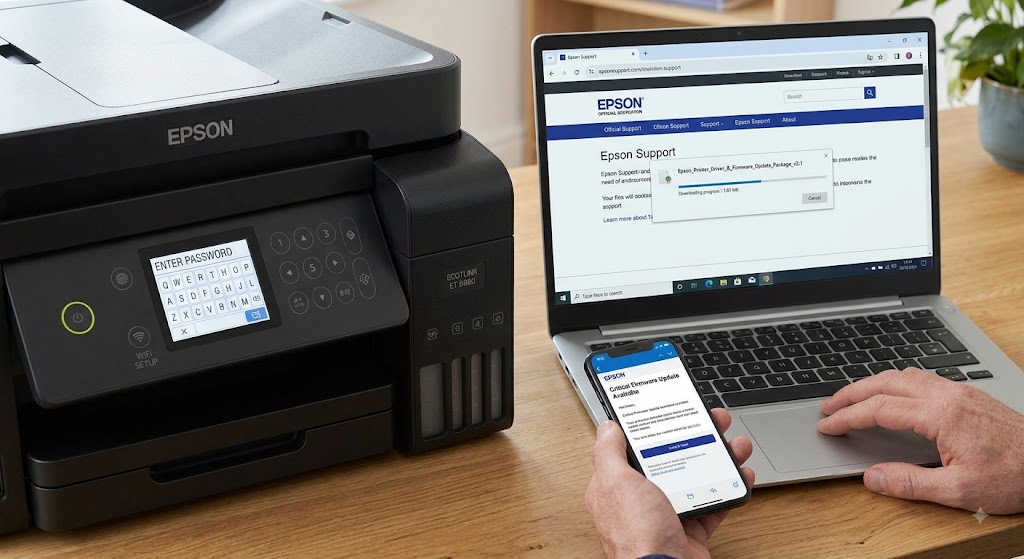
Update the Printer Firmware
-
Firmware updates improve printer performance and fix known software issues.
-
Keeping your Epson printer updated can improve printing reliability.
Remove and Reinstall the Printer
-
If the printer still will not print, remove it from your computer.
-
Restart both the printer and the computer.
-
Add the printer again using the recommended installation process.
-
A fresh installation often resolves printing issues.
Print a Test Page
-
After completing the troubleshooting steps, print a test page.
-
If the page prints successfully, your printer is working correctly again.
Common Reasons an Epson Printer Is Online but Won't Print
Several issues can stop an online printer from printing.
Common causes include:
-
Stuck print queue.
-
Low or empty ink cartridges.
-
Paper jam.
-
Incorrect default printer.
-
Weak Wi-Fi connection.
-
Loose USB cable.
-
Outdated printer driver.
-
Outdated printer firmware.
-
Print Spooler service problems.
-
Incorrect printer settings.
-
Firewall or antivirus software blocking communication.
-
Temporary software conflicts.
Checking these common causes can help you solve the issue more quickly.
Tips to Prevent Printing Problems
A few simple maintenance habits can improve printer performance.
-
Keep the printer driver updated.
-
Install firmware updates regularly.
-
Use genuine and compatible ink cartridges.
-
Clear completed print jobs regularly.
-
Restart the printer occasionally.
-
Keep your operating system updated.
-
Use a stable Wi-Fi connection.
-
Print a test page after major software updates.
These practices help reduce future printing problems.
FAQs
Why is my Epson printer online but not printing?
This is usually caused by a stuck print queue, outdated drivers, incorrect settings, communication issues, or low ink levels.
Can a print queue stop my printer from printing?
Yes. A stuck or corrupted print job can prevent all new documents from printing.
Should I update my printer driver?
Yes. Installing the latest printer driver improves compatibility and fixes many printing issues.
Why should I restart the Print Spooler service?
Restarting the Print Spooler clears temporary printing errors and helps Windows communicate properly with the printer.
Can outdated firmware affect printing?
Yes. Firmware updates improve printer stability, performance, and compatibility with newer systems.
What should I do if my Epson printer is still online but won't print?
Check the printer for errors, clear the print queue, verify the connection, restart the printer and computer, update the printer driver and firmware, reinstall the printer if necessary, and print a test page. If the issue continues, further troubleshooting may be required.
Conclusion
An Epson printer showing online but not printing is usually affected by software or communication issues rather than hardware failure. Print queue problems, outdated drivers, incorrect settings, and network interruptions are among the most common causes.
By checking the printer status, clearing the print queue, updating the printer driver and firmware, restarting the Print Spooler service, and reinstalling the printer if necessary, you can resolve most printing issues and restore normal operation.
How to Reach Our On-Call Support Team
Getting the help, you need is just a phone call away: