Why is my Epson printer saying paper jam but there is no jammed paper?
It can be confusing when your Epson printer displays a paper jam message even though you have carefully checked the paper path and cannot find any stuck paper. The printer refuses to print, and despite repeated inspections, everything appears normal. This situation is more common than many users realize and is often referred to as a false paper jam error.
A false paper jam message does not always mean that paper is actually trapped inside the printer. In many cases, the error is triggered by small scraps of paper, dirty rollers, sensor problems, incorrectly loaded paper, or temporary software glitches. Fortunately, most of these issues can be resolved with a few careful troubleshooting steps.
Common Reasons for a False Paper Jam Error
Several issues can cause your printer to display a paper jam message even when no sheet of paper is visible.
Some of the most common causes include:
-
Tiny pieces of torn paper inside the printer
-
Dust or debris blocking paper sensors
-
Dirty paper feed rollers
-
Misaligned paper in the input tray
-
Overloaded paper tray
-
Worn paper rollers
-
Temporary printer software issues
-
Internal sensor blockage
-
Foreign objects inside the printer
-
Printer firmware problems
Identifying the actual cause makes troubleshooting much easier.
Check the Entire Paper Path
-
Begin by carefully inspecting every part of the paper path.
-
Even if a full sheet of paper is not visible, small pieces of torn paper may still be lodged inside the printer.
Look carefully in:
-
The input tray
-
The output tray
-
The rear paper path
-
Around the print carriage
-
Inside the paper feed area
Removing even a tiny scrap of paper may clear the error.
Inspect the Paper Feed Rollers
-
Paper feed rollers move the paper through the printer.
-
Over time, dust, paper fibers, and ink residue can accumulate on the rollers, reducing their ability to feed paper properly.
-
Dirty rollers may cause the printer to incorrectly detect a paper jam.
-
Carefully inspect the rollers and remove any visible debris.
Check for Foreign Objects
-
Small objects can accidentally fall inside the printer and block the paper path.
-
Items such as paper clips, staples, labels, adhesive residue, or other debris may interfere with the paper sensors.
-
Carefully inspect the interior of the printer and remove any foreign objects you discover.
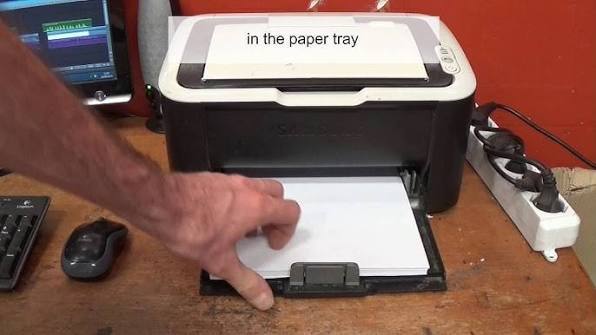
Reload the Paper Properly
Improperly loaded paper can trigger false paper jam messages.
Remove the paper stack completely and inspect it for:
-
Bent pages
-
Wrinkled sheets
-
Damp paper
-
Torn edges
-
Mixed paper sizes
Reload the paper neatly without overfilling the tray.
Proper paper alignment helps the printer feed paper smoothly.
Avoid Overloading the Paper Tray
-
Loading too much paper into the input tray can place unnecessary pressure on the paper feed mechanism.
-
Use a moderate amount of paper and make sure it sits evenly inside the tray.
-
An overloaded tray can contribute to paper feeding errors.
Restart the Printer
-
Temporary software issues sometimes cause false error messages.
-
Turn the printer off completely, wait briefly, and then turn it back on.
-
Restarting refreshes the printer's internal processes and may clear the paper jam message.
Check the Print Carriage
-
Open the printer and inspect the print carriage.
-
Ensure it moves freely across the printer without obstruction.
-
If something is preventing the carriage from moving normally, the printer may incorrectly report a paper jam.
-
Never force the carriage if it does not move easily.
Clean the Printer Interior
-
Dust and paper particles can accumulate inside the printer over time.
-
Cleaning the interior helps prevent debris from interfering with paper movement or sensor operation.
-
Keeping the inside of the printer clean also improves overall performance.
Update the Printer Driver
-
Outdated printer drivers may occasionally contribute to communication or printing issues.
-
Installing the latest compatible driver helps improve stability and overall printer performance.
-
Restart your computer after updating the driver.
Update Printer Firmware
-
Printer firmware controls many internal functions, including paper handling.
-
Firmware updates often resolve known operational issues and improve compatibility.
-
Restart the printer after completing any available firmware updates.
Tips to Prevent False Paper Jam Errors
Following a few simple habits can reduce the likelihood of this issue occurring again.
Use Clean Paper
Store paper in a dry location and avoid using damaged sheets.
Keep the Printer Clean
Regular cleaning prevents dust and paper debris from accumulating.
Load Paper Correctly
Align the paper neatly before printing.
Avoid Overfilling the Tray
Leave enough room for the paper to move freely.
Inspect the Printer Regularly
Occasional inspections help identify debris before it causes problems.
Keep Printer Software Updated
Updated software improves printer reliability and compatibility.
FAQs
Why does my Epson printer say there is a paper jam when there is no paper inside?
This usually happens because of tiny paper scraps, dirty rollers, blocked sensors, foreign objects, software glitches, or worn printer components.
Can dust cause a false paper jam error?
Yes. Dust and paper debris can interfere with the printer's sensors and paper feed mechanism, causing incorrect paper jam messages.
Should I restart my Epson printer after checking for a paper jam?
Yes. Restarting the printer often clears temporary software issues and refreshes the printer's internal system.
Can damaged paper trigger a paper jam warning?
Yes. Bent, wrinkled, damp, or torn paper can interfere with paper feeding and cause the printer to detect a jam incorrectly.
How can I prevent false paper jam errors?
Use clean paper, avoid overloading the paper tray, keep the printer interior clean, inspect the paper path regularly, update printer software, and perform routine maintenance to help ensure reliable printing.
Conclusion
A paper jam message on an Epson printer does not always mean that paper is actually stuck inside the machine. Small scraps of paper, dirty rollers, blocked sensors, improperly loaded paper, software glitches, and worn components can all trigger a false paper jam warning.
How to Reach Our On-Call Support Team
Getting the help, you need is just a phone call away: