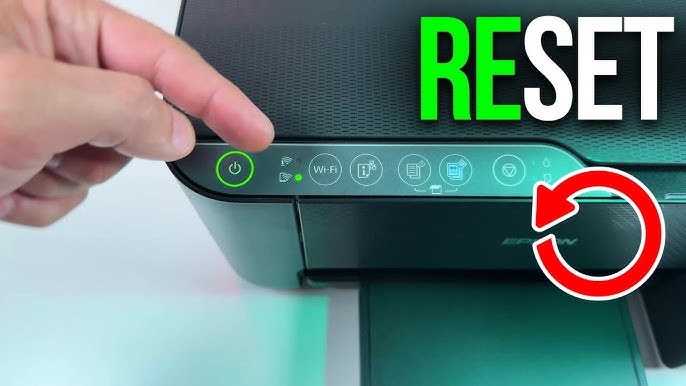
How to hard reset Epson EcoTank printer?
An Epson EcoTank printer is designed to deliver reliable printing for home, school, and office use. Its refillable ink tank system makes it a popular choice for users who print frequently. However, like any electronic device, an EcoTank printer may occasionally experience problems such as connection issues, printing errors, unresponsive controls, or system glitches. In many situations, performing a hard reset can help restore the printer to normal operation.
What Is a Hard Reset?
A hard reset restores the printer's internal settings to their original state.
During the process, the printer clears temporary system errors and removes certain customized settings that may be causing problems. After the reset, you may need to reconnect the printer to your wireless network and configure some settings again.
A hard reset is often used when basic troubleshooting methods have not resolved the issue.
When Should You Perform a Hard Reset?
A hard reset may be useful if your Epson EcoTank printer experiences persistent problems.
Some common situations include:
-
The printer becomes unresponsive.
-
Printing stops unexpectedly.
-
The printer cannot connect to a wireless network.
-
Error messages continue appearing.
-
The printer is not detected by your computer.
-
Print jobs remain stuck.
-
The control panel stops responding.
-
General performance becomes unreliable.
If simple troubleshooting has not solved the issue, a hard reset may be the next step.
Save Important Printer Settings
-
Before resetting the printer, remember that some customized settings may be removed.
-
If you have configured wireless network information or other preferences, make a note of them so they can be entered again after the reset.
-
Being prepared will make the setup process much easier.
Cancel Any Active Print Jobs
-
Before beginning the reset, stop any documents waiting to print.
-
Cancel active print jobs from your computer or mobile device.
-
Allow the printer to finish any ongoing task before starting the reset process.
-
This helps prevent interruptions during the reset.
Turn Off the Printer
-
Switch off the Epson EcoTank printer using the power button.
-
Wait for the printer to shut down completely.
-
After the printer has powered off, disconnect the power cable from the electrical outlet.
-
Allow the printer to remain disconnected for a short period.
-
This helps clear temporary electrical memory inside the printer.
Reconnect the Power
-
Reconnect the power cable securely.
-
Turn the printer back on and allow it to complete its startup process.
-
During startup, the printer performs an internal check before becoming ready for use.
-
Wait until this process finishes completely.
Access the Printer Settings
-
Most Epson EcoTank printers provide access to reset options through the control panel.
-
Open the settings menu and locate the option related to restoring or resetting printer settings.
-
Carefully read the available choices before confirming the reset.
-
Selecting the appropriate reset option helps avoid removing settings unnecessarily.
Confirm the Reset
-
Once you select the reset option, confirm your choice.
-
The printer will begin restoring its default configuration.
-
Do not turn off the printer or disconnect the power while the reset is taking place.
-
Interrupting the process may lead to additional software problems.
Allow the Printer to Restart
-
After the reset is complete, the printer will restart automatically or prompt you to restart it manually.
-
Allow the startup process to finish without interruption.
-
Once the printer becomes ready, it will operate using its default settings.
Print a Test Page
Printing a test page helps verify that the reset was successful.
A successful test print confirms that:
-
The printer is operating normally.
-
Paper feeds correctly.
-
Print quality is clear.
-
The printer communicates with your computer.
-
The reset resolved the original issue.
If the printer performs normally, you can resume regular printing.
What Problems Can a Hard Reset Fix?
A hard reset can resolve many software-related issues.
These may include:
-
Temporary printer errors.
-
Wireless connection problems.
-
Slow printer response.
-
Frozen control panel.
-
Communication issues with computers.
-
Failed print jobs.
-
Incorrect printer settings.
-
Minor software glitches.
Although a hard reset is helpful, it may not solve problems caused by damaged hardware.
Common Mistakes to Avoid
Avoid these common mistakes while performing a hard reset.
Interrupting the Reset
-
Do not disconnect the power or turn off the printer while the reset is in progress.
-
Allow the process to finish completely.
Forgetting Wireless Information
Since the reset may remove network settings, keep your wireless information available before starting.
Ignoring Printer Messages
-
Read every message displayed on the printer screen carefully before confirming the reset.
-
This helps ensure the correct option is selected.
Skipping the Test Print
-
Always print a test page after the reset.
-
This confirms that the printer is functioning properly.
Tips to Keep Your Epson EcoTank Printer Working Well
Regular maintenance can reduce the need for future resets.
Helpful habits include:
-
Keep the printer clean.
-
Use suitable paper.
-
Print regularly.
-
Keep the printer software updated.
-
Maintain a stable wireless connection.
-
Protect the printer from dust and moisture.
-
Load paper correctly.
-
Check ink levels regularly.
These simple practices help maintain reliable printer performance.
FAQs
What does a hard reset do on an Epson EcoTank printer?
A hard reset restores the printer's default settings and clears temporary software issues that may affect performance.
Will a hard reset delete my wireless settings?
Yes. A hard reset may remove saved wireless network information, requiring you to reconnect the printer afterward.
Can a hard reset fix printer connection problems?
Yes. Many temporary connection issues can be resolved by restoring the printer's default settings.
Is it safe to perform a hard reset?
Yes. When performed correctly, a hard reset is a safe troubleshooting method for resolving software-related printer problems.
Should I print a test page after resetting the printer?
Yes. A test page confirms that the printer is operating correctly and that the reset was successful.
Conclusion
A hard reset is an effective way to resolve many common issues with an Epson EcoTank printer. If your printer becomes unresponsive, experiences repeated connection problems, or displays persistent errors, restoring the printer to its default settings can often solve the problem.
How to Reach Our On-Call Support Team
Getting the help, you need is just a phone call away: