What is the most common error in printers?
Printers are important devices used in homes, schools, shops, and workplaces. They make it easy to print documents, reports, invoices, photos, and other useful files. However, like any electronic device, a printer can sometimes stop working or display an unexpected error.
What Is the Most Common Printer Error?
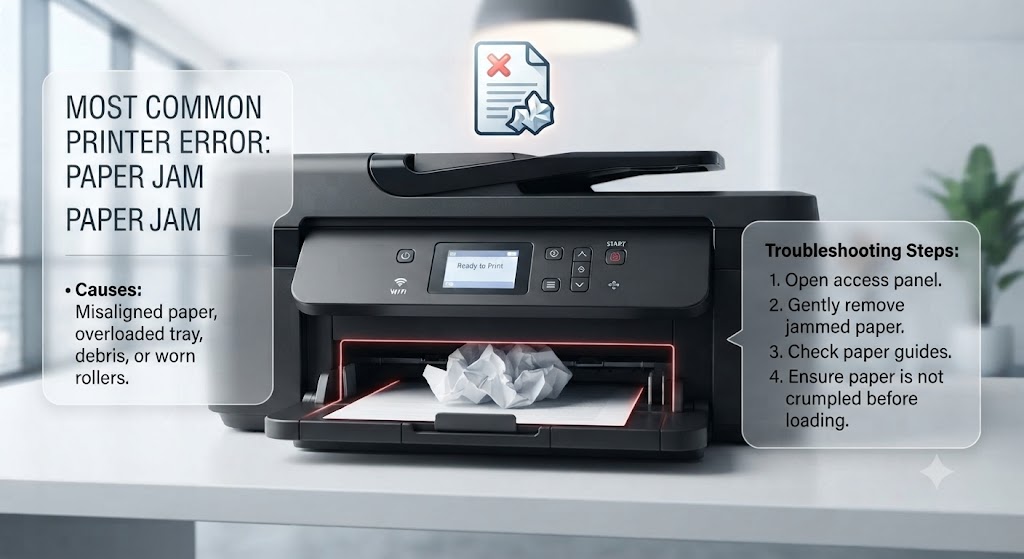
A paper jam is one of the most common printer errors.
A paper jam happens when a sheet of paper becomes stuck while moving through the printer. The printer detects that the paper is not moving correctly and stops the printing process.
You may see a paper jam warning on the printer screen or computer. Some printers may also flash warning lights.
Even a small piece of torn paper can trigger a paper jam message.
Why Do Paper Jams Happen?
-
Paper jams can occur for several reasons.
-
The paper may not be loaded correctly in the tray. The paper guides may be too tight or too loose. Damaged or folded paper may also become stuck during printing.
-
Dust and paper particles can collect on the printer rollers over time. Dirty rollers may struggle to pull paper correctly.
-
Overloading the paper tray is another common cause.
-
Understanding these causes can help you avoid future jams.
Turn Off the Printer
-
Before checking for jammed paper, turn off the printer.
-
Wait until the printer shuts down completely.
-
Disconnect the power cable if you need to inspect the inside of the printer.
-
Turning off the printer helps protect internal parts while you remove trapped paper.
Check the Paper Tray
-
Start by checking the paper tray.
-
Remove the paper and inspect each sheet.
-
Do not use paper that is folded, wet, torn, or damaged.
-
Arrange the paper neatly and place it back in the tray.
-
Make sure the paper guides touch the paper gently without pressing too tightly.
-
Correct paper loading helps prevent feeding problems.
Look for Jammed Paper
-
Open the printer covers carefully and inspect the paper path.
-
Look for visible paper inside the printer.
-
If you find a trapped sheet, hold it with both hands and pull it slowly.
-
Avoid pulling with excessive force because the paper may tear.
-
Removing the paper gently reduces the risk of leaving small pieces inside the printer.
Check for Torn Paper Pieces
-
A small piece of paper may remain inside the printer after removing a jam.
-
Use good lighting to inspect the paper path.
-
Check around the rollers and other accessible areas.
-
Remove any visible paper pieces carefully.
-
Even a tiny piece of paper can cause the printer to continue displaying a paper jam warning.
Inspect the Printer Rollers
-
Printer rollers help move paper through the machine.
-
Dust, paper particles, and dirt can collect on the rollers.
-
Dirty rollers may fail to grip the paper properly.
-
Turn off the printer and gently clean accessible rollers using a soft and clean cloth.
-
Avoid using excessive liquid.
-
Clean rollers can improve paper feeding.
Restart the Printer
-
After removing jammed paper, close all printer covers.
-
Reconnect the power cable and turn the printer on.
-
Wait for the printer to complete its startup process.
-
The paper jam warning may disappear after the printer checks the paper path.
-
Try printing a small test document.
Why Does the Paper Jam Error Remain?
-
Sometimes the printer continues showing a paper jam warning even when no paper is visible.
-
A small torn piece may still be trapped inside.
-
The printer cover may not be closed correctly, or a paper sensor may be blocked by dust.
-
Restarting the printer may clear a temporary error.
-
If the warning continues, inspect the paper path again carefully.
Printer Offline Error
-
Another common printer problem is the offline error.
-
A printer may appear offline when the computer cannot communicate with it.
-
This can happen because of a loose cable, weak wireless connection, or temporary software problem.
-
Check the printer connection and restart both the printer and computer.
-
For wireless printing, make sure both devices are connected to the same network.
Printer Not Printing
-
Sometimes the printer appears ready but does not print.
-
A stuck print job may be blocking the queue.
-
Open the print queue and remove pending documents.
-
Check the printer status and make sure the correct printer is selected.
-
Restart the printer and send a small test document.
Common Printer Errors
Printers may experience several common problems.
These include:
-
Paper jams.
-
Printer offline errors.
-
Printer not printing.
-
Cartridge detection problems.
-
Printer driver errors.
-
Wireless connection failures.
-
Stuck print queues.
-
Poor print quality.
-
Blank pages.
-
Slow printing.
-
Paper feeding problems.
Identifying the error correctly makes troubleshooting easier.
FAQs
What is the most common printer error?
A paper jam is one of the most common printer errors. It happens when paper becomes trapped while moving through the printer.
Why does my printer keep getting paper jams?
Incorrect paper loading, damaged paper, dirty rollers, or an overloaded paper tray may cause repeated paper jams.
Why does my printer show a paper jam when there is no paper?
A small torn paper piece, blocked sensor, or temporary printer error may cause the warning to remain.
Can dirty rollers cause printer errors?
Yes. Dirty rollers may struggle to grip and move paper correctly, leading to paper feeding problems.
Is printer offline a common error?
Yes. Printer offline errors are common and usually happen because of connection or communication problems.
Conclusion
A paper jam is one of the most common errors in printers. It usually occurs because of incorrectly loaded paper, damaged sheets, dirty rollers, or paper trapped inside the printer.
Turning off the printer, checking the paper tray, removing jammed paper carefully, inspecting for torn pieces, and cleaning accessible rollers can often resolve the problem.
How to Reach Our On-Call Support Team
Getting the help, you need is just a phone call away: