How to fix a canon paper jam error?
A paper jam is one of the most common issues Canon printer users encounter. Whether you are printing important business documents, school assignments, or personal files, a paper jam can interrupt your work and prevent the printer from functioning properly. Sometimes the jam is obvious, while other times the printer continues displaying a paper jam error even after the paper has been removed.
The good news is that most Canon paper jam errors can be resolved without replacing the printer. The problem is often caused by improperly loaded paper, torn paper fragments, dirty rollers, foreign objects, or temporary software glitches. By carefully inspecting the printer and following the proper troubleshooting steps, you can usually restore normal printing.
Common Causes of Canon Paper Jam Errors
Understanding the cause of the error makes troubleshooting much easier.
Some of the most common reasons include:
-
Incorrectly loaded paper
-
Torn pieces of paper left inside the printer
-
Overloaded paper tray
-
Dirty paper feed rollers
-
Worn paper rollers
-
Foreign objects inside the printer
-
Wrinkled or damaged paper
-
Damp paper
-
Misaligned paper guides
-
Temporary printer software issues
Identifying the cause helps you apply the appropriate solution.
Turn Off the Printer
-
Before checking for a paper jam, switch the printer off.
-
Turning the printer off helps prevent damage to internal components while you inspect the paper path.
-
Wait for all moving parts to stop before opening the printer.
Remove the Jammed Paper Carefully
-
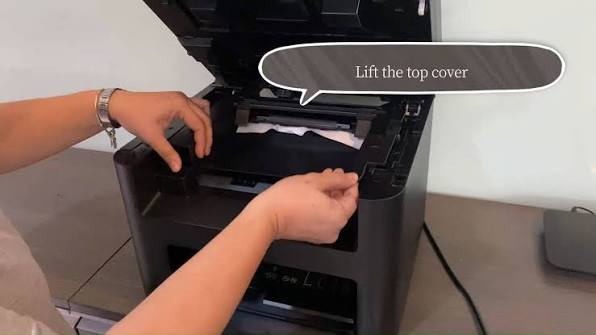
If paper is visible inside the printer, remove it slowly and evenly.
-
Avoid pulling the paper forcefully, as this may cause it to tear and leave small pieces behind.
-
Always pull the paper in the direction of the paper path whenever possible.
-
Removing the paper carefully helps prevent additional jams.
Inspect the Entire Paper Path
Even after removing the main sheet, small paper fragments may remain inside.
Carefully inspect:
-
The input tray
-
The output tray
-
The rear paper path
-
Around the print carriage
-
The paper feed area
Tiny scraps of paper can continue triggering the paper jam error.
Check for Foreign Objects
-
Items such as paper clips, staples, labels, or other small objects may accidentally enter the printer.
-
These objects can block the paper path and trigger repeated paper jam errors.
-
Carefully remove any foreign material you find inside the printer.
Reload the Paper Correctly
Improper paper loading is a common cause of paper jams.
Remove the paper stack and inspect it for:
-
Bent pages
-
Wrinkled sheets
-
Torn edges
-
Damp paper
-
Mixed paper sizes
Reload the paper neatly and adjust the paper guides so they fit against the stack without pressing too tightly.
Avoid Overloading the Paper Tray
-
Placing too much paper in the tray can interfere with proper paper feeding.
-
Load only an appropriate amount of paper and ensure it is aligned evenly.
-
A properly loaded tray helps reduce paper feed problems.
Clean the Paper Feed Rollers
-
Paper rollers gradually collect dust, paper fibers, and other debris.
-
Dirty rollers may lose their grip on the paper, causing repeated feeding problems.
-
Inspect the rollers and clean away any visible dust or debris.
-
Routine roller cleaning improves paper movement.
Check the Print Carriage
-
Open the printer and verify that the print carriage moves freely.
-
If the carriage is blocked by paper or another object, the printer may display a paper jam error.
-
Never force the carriage if it does not move easily.
Restart the Printer
-
After clearing the paper path, restart the printer.
-
Restarting refreshes the printer's internal system and often clears temporary error messages.
-
Wait until the printer finishes its startup process before printing again.
Print a Test Page
Printing a test page helps confirm that the paper jam has been resolved.
A successful test indicates that:
-
Paper feeds correctly.
-
The printer operates normally.
-
No paper jam message remains.
-
The paper path is clear.
Testing immediately helps verify the repair.
Tips to Prevent Canon Paper Jam Errors
Following a few simple habits can greatly reduce the chance of future paper jams.
Load Paper Properly
Always align the paper neatly before printing.
Keep the Printer Clean
Remove dust and paper debris regularly.
Avoid Mixing Paper Types
Use paper of the same size and type within each paper stack.
Store Paper Correctly
Keep paper in a dry, flat location to prevent moisture damage.
Inspect the Printer Regularly
Routine inspections help identify small problems before they become larger ones.
Keep Printer Software Updated
Updated software improves overall printer performance and reliability.
FAQs
Why does my Canon printer keep showing a paper jam error?
This may happen because of small paper fragments, dirty rollers, blocked sensors, foreign objects, improperly loaded paper, or temporary printer software issues.
How should I remove jammed paper from my Canon printer?
Turn the printer off first, then gently pull the paper in the direction of the paper path to avoid tearing it.
Can tiny paper pieces cause repeated paper jam errors?
Yes. Even very small scraps of paper left inside the printer can block sensors and continue triggering paper jam messages.
Should I clean the paper rollers?
Yes. Cleaning the paper feed rollers helps improve paper movement and reduces the likelihood of repeated paper jams.
How can I prevent paper jams in my Canon printer?
Load paper correctly, avoid overfilling the tray, use clean and dry paper, keep the printer clean, inspect the paper path regularly, and perform routine maintenance to maintain smooth and reliable printing.
Conclusion
A Canon paper jam error is a common printing problem, but it is usually caused by simple issues such as improperly loaded paper, torn paper fragments, dirty rollers, or temporary software glitches. With careful inspection and routine maintenance, most paper jams can be resolved without major repairs.
How to Reach Our On-Call Support Team
Getting the help, you need is just a phone call away: