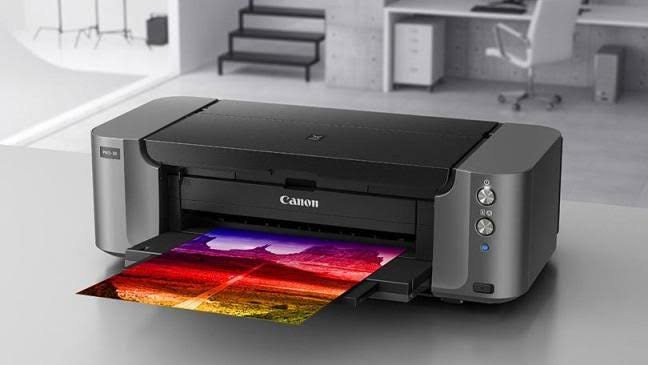
What are common Canon error codes?
Canon printers are popular for their excellent print quality, reliable performance, and easy-to-use features. They are widely used in homes, schools, and businesses for printing documents, photos, and reports. Like any electronic device, Canon printers may occasionally display error codes that interrupt printing or scanning tasks. These error codes are designed to identify specific problems and help users troubleshoot them quickly.
Why Does a Canon Printer Display Error Codes?
Canon printers perform regular self-checks while operating. When the printer detects an issue that prevents normal operation, it displays an error code to help identify the problem.
Some common reasons include:
- Paper jams
- Empty or low ink cartridges
- Improperly installed cartridges
- Print head issues
- Wireless connection problems
- Communication errors
- Outdated printer drivers
- Firmware problems
- Temporary software issues
- Internal hardware faults
Understanding the cause makes troubleshooting easier.
Common Canon Printer Error Codes
Below are some of the most frequently encountered Canon printer error codes and what they generally indicate.
Error Code for Paper Jam
Paper jam errors appear when paper becomes stuck inside the printer.
Possible causes include:
- Misaligned paper
- Overloaded paper tray
- Torn paper inside the printer
- Dirty paper rollers
Carefully remove the jammed paper and inspect the printer for any remaining paper fragments before printing again.
Error Code for Ink Cartridge Problems
These errors occur when the printer cannot recognize one or more ink cartridges.
Possible reasons include:
- Incorrect cartridge installation
- Empty ink cartridges
- Incompatible cartridges
- Protective tape left on new cartridges
- Dirty cartridge contacts
Reinstall the cartridges securely and verify that they are compatible with your printer.
Error Code for Low Ink
- A low ink warning indicates that one or more cartridges are nearly empty.
- Although printing may still continue for a short time, replacing the cartridge promptly helps maintain print quality.
Error Code for Print Head Problems
Print head errors often occur when dried ink blocks the nozzles.
Common symptoms include:
- Blank pages
- Missing lines
- Faded printing
- Incorrect colors
Running the printer's print head cleaning feature often restores normal printing.
Error Code for Communication Problems
Communication errors occur when the printer cannot exchange information with the computer.
Possible causes include:
- Loose USB cable
- Wireless connection failure
- Incorrect network settings
- Outdated printer drivers
Check all connections and restart both devices.
Error Code for Wireless Connection Issues
Wireless Canon printers may display connection errors if they lose communication with the router.
Common causes include:
- Weak Wi-Fi signal
- Incorrect network password
- Router restart
- Network interruption
Reconnect the printer to the wireless network if necessary.
Error Code for Scanner Problems
Multifunction Canon printers may display scanner-related errors when scanning cannot begin.
Possible causes include:
- Temporary software issues
- Communication problems
- Scanner initialization errors
Restart the printer and computer before attempting another scan.
Error Code for Firmware Problems
Firmware errors may appear when printer software becomes outdated or an update is interrupted.
Updating the printer firmware improves:
- Stability
- Compatibility
- Performance
- Security
Restart the printer after the update is complete.
General Troubleshooting Steps
If your Canon printer displays an error code, try the following troubleshooting methods.
Restart the Printer
- Turn off the printer, wait a short time, and then turn it back on.
- Restarting often clears temporary software problems.
Restart Your Computer
A computer restart refreshes communication between the printer and the operating system.
Check the Paper
Verify that:
- Paper is loaded properly.
- The tray is not overloaded.
- The paper guides are adjusted correctly.
- The paper is clean and dry.
Proper paper loading helps prevent printing errors.
Verify Ink Levels
Check that:
- Ink cartridges contain sufficient ink.
- Cartridges are installed correctly.
- No cartridge is damaged.
Maintaining proper ink levels improves print quality.
Update the Printer Driver
An updated printer driver improves:
- Compatibility
- Communication
- Stability
- Printing performance
Restart your computer after updating the driver.
Update Printer Firmware
- Firmware updates help improve printer reliability and resolve known issues.
- Allow the update to finish without interruption.
Perform Routine Printer Maintenance
Regular maintenance reduces the likelihood of printer errors.
Routine maintenance includes:
- Cleaning the print head
- Checking ink levels
- Updating printer drivers
- Installing firmware updates
- Cleaning paper rollers
- Removing dust from the printer
- Restarting the printer periodically
Routine care helps extend the printer's lifespan.
Tips to Prevent Canon Printer Errors
Following good maintenance practices helps reduce printer problems.
Use High-Quality Paper
Store paper in a dry location and avoid damaged sheets.
Replace Ink Before It Runs Out
Maintaining adequate ink levels helps prevent print quality issues.
Keep Drivers Updated
Updated drivers improve compatibility and communication.
Clean the Printer Regularly
Routine cleaning helps prevent print head blockages and paper jams.
Maintain a Stable Wireless Connection
A strong Wi-Fi connection improves wireless printing reliability.
Restart Devices Occasionally
Routine restarts help refresh system communication.
Common Mistakes to Avoid
Avoid these common mistakes:
- Ignoring printer error messages
- Using damaged or damp paper
- Printing with empty ink cartridges
- Skipping print head cleaning when needed
- Ignoring driver updates
- Interrupting firmware updates
- Using an unstable wireless connection
- Neglecting routine printer maintenance
Avoiding these mistakes helps keep your Canon printer operating efficiently.
FAQs
Why does my Canon printer display an error code?
A Canon printer displays an error code when it detects a problem such as a paper jam, cartridge issue, print head blockage, communication failure, or network interruption.
Can restarting my Canon printer fix an error code?
Yes. Restarting the printer often clears temporary software issues and restores normal operation.
Why should I update my Canon printer driver?
Updated drivers improve compatibility, communication, stability, and overall printing performance.
Can low ink cause Canon printer errors?
Yes. Low or empty ink cartridges can trigger warning messages and affect print quality.
Conclusion
Canon printer error codes are designed to help users identify and resolve common problems such as paper jams, cartridge issues, print head blockages, communication failures, wireless connectivity problems, and firmware-related issues. Most of these errors can be fixed with basic troubleshooting and regular maintenance rather than requiring major repairs.
How to Reach Our On-Call Support Team
Getting the help, you need is just a phone call away: