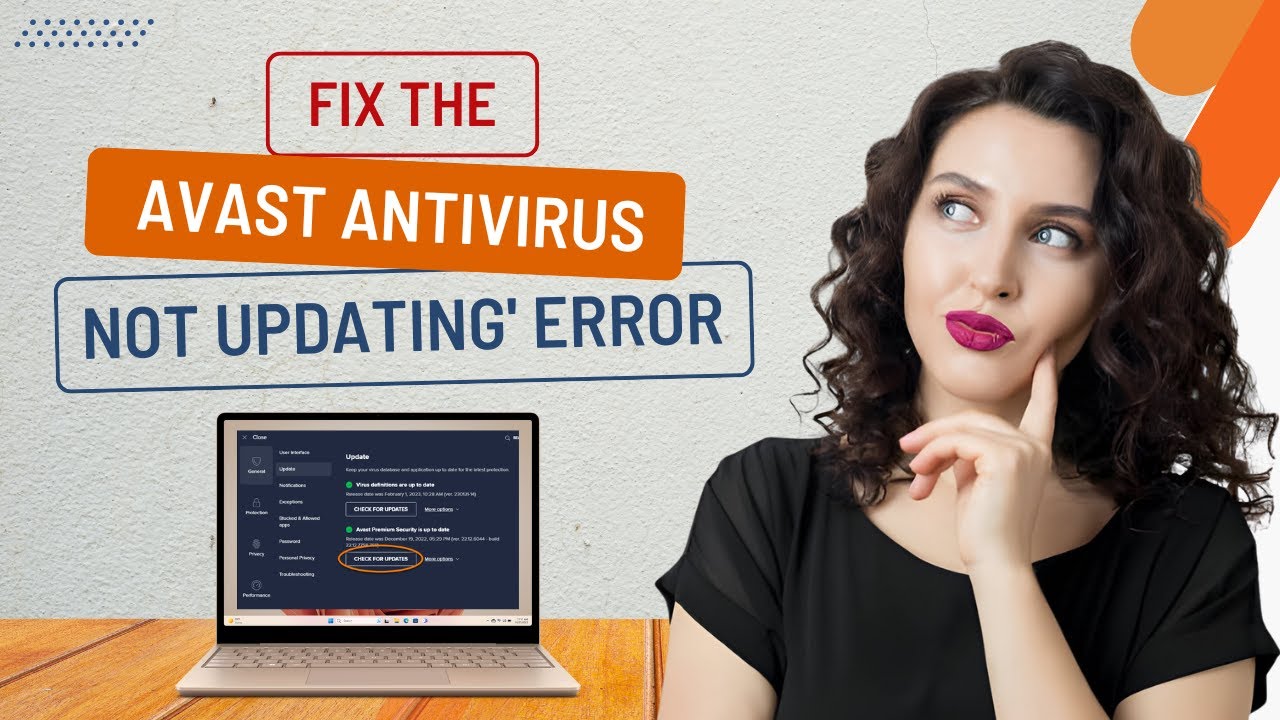
How do I update an anti-virus?
An anti virus program plays an essential role in protecting your computer from viruses, malware, ransomware, spyware, and other online threats. As cyber threats continue to evolve, simply installing an anti virus application is not enough. To provide effective protection, the software must be updated regularly so it can recognize and defend against the latest security risks.
Why Is It Important to Update an Anti Virus?
Regular updates help your security software stay prepared against emerging threats.
Protection Against New Threats
Cybercriminals constantly develop new viruses and malware. Updated virus definitions help your anti virus detect the latest threats.
Improved Security Features
Software updates often introduce stronger protection technologies that improve overall device security.
Better Performance
Updates can improve scanning speed, reduce system resource usage, and enhance application stability.
Bug Fixes
Developers regularly release updates to correct software issues and improve reliability.
Improved Compatibility
Updates help ensure your anti virus works properly with the latest operating system updates and applications.
Signs Your Anti Virus Needs an Update
You may notice several indicators that your security software requires updating.
-
Virus definitions are outdated.
-
Security warnings appear frequently.
-
Automatic updates are not completing.
-
The application reports update failures.
-
Scans are slower than usual.
-
New security features are unavailable.
-
The software displays outdated protection status.
Recognizing these signs helps ensure your device remains protected.
How to Update an Anti Virus
Open the Anti Virus Application
Launch your installed anti virus program from your computer.
Check the Current Protection Status
Review the application dashboard to determine whether your virus definitions or software version require updating.
Connect to the Internet
Ensure your computer has a stable internet connection before beginning the update process.
Start the Update Process
Use the built-in update option to download the latest virus definitions and software improvements.
Allow the Update to Finish
Wait for the update process to complete without closing the application or shutting down your computer.
Restart Your Computer
Some updates require a restart before all security improvements become active.
Run a Full System Scan
After updating, perform a complete system scan to detect and remove any threats that may have appeared before the update.
What to Do If the Update Fails
Sometimes the update process may not complete successfully. Several troubleshooting methods can help resolve the issue.
Check Your Internet Connection
A weak or interrupted internet connection can prevent update files from downloading successfully.
Restart the Application
Close the anti virus program completely and reopen it before attempting the update again.
Restart Your Computer
Restarting your computer refreshes background processes that may be preventing the update.
Verify Subscription Status
Some anti virus applications require an active subscription before updates can be downloaded.
Check Available Storage
Insufficient storage space can interrupt the update process.
Disable Conflicting Software
Other security applications running simultaneously may interfere with updates.
Reinstall the Anti Virus
If updates continue to fail, reinstalling the application may resolve damaged files or configuration problems.
Tips to Keep Your Anti Virus Updated
Following these practices helps maintain reliable protection.
-
Enable automatic updates whenever available.
-
Maintain a stable internet connection.
-
Restart your computer regularly.
-
Keep your operating system updated.
-
Check update status periodically.
-
Perform routine system scans.
-
Monitor your subscription status.
-
Remove unused security software.
-
Keep sufficient storage space available.
-
Review security notifications regularly.
Common Mistakes to Avoid
Avoid these mistakes to ensure your anti virus continues working effectively.
-
Ignoring update notifications.
-
Turning off automatic updates.
-
Running multiple anti virus programs together.
-
Skipping full system scans.
-
Ignoring subscription expiration.
-
Disconnecting from the internet during updates.
-
Delaying software updates for long periods.
Avoiding these mistakes helps improve overall system security.
FAQs
Why should I update my anti virus regularly?
Regular updates provide the latest virus definitions, improve security features, and help protect your computer from newly discovered threats.
Can an outdated anti virus miss new viruses?
Yes. Without updated virus definitions, your anti virus may not recognize or block the latest malware and security threats.
Why is my anti virus update failing?
Common reasons include internet connection issues, expired subscriptions, insufficient storage, software conflicts, or damaged application files.
Should I restart my computer after updating my anti virus?
Yes. Some updates require a restart before all security improvements become active.
How can I keep my anti virus updated automatically?
Enable automatic updates, maintain a stable internet connection, monitor your subscription status, and regularly check the application for available updates.
Conclusion
Keeping your anti virus updated is one of the simplest and most effective ways to protect your computer from evolving security threats. New malware appears regularly, and outdated security software may not recognize the latest risks. Fortunately, updating an anti virus is usually a straightforward process that only takes a short time.
How to Reach Our On-Call Support Team
Getting the help, you need is just a phone call away: